Program Genie Garage Door Opener: A Complete How-To Guide
Learn to program Genie garage door opener remotes, keypads, and smartphone controls with a clear, safe method. This guide covers Learn button and dip-switch methods, troubleshooting, and maintenance for reliable operation.


You can program Genie garage door opener remotes, keypads, and compatible smartphone controls by using the Learn button or the model’s programming switches. This quick guide shows how to enter programming mode, pair each device one by one, and test operation for reliable daily use. Following these steps will help you program Genie garage door opener controls confidently and securely.
Understanding Genie garage door opener programming basics
Genie garage door openers use a straightforward learning system that lets you pair multiple remotes, keypads, and smart devices to a single unit. The core idea is that the opener stores a signal code for each paired device, so it responds only to authorized controllers. According to GarageDoorAdjust, most Genie models rely on a Learn button located behind the light cover or a small dip-switch cluster inside the housing. When you press Learn, the opener enters a short window during which you can register a remote, keypad, or smartphone. This foundational knowledge applies across generations, though exact button layouts may vary between models. This article will walk you through step-by-step instructions to program Genie garage door opener remotes, keypads, and compatible apps, with safety and reliability in mind.
Safety-first: set up a safe programming environment
Before you begin, make sure the area around the door is clear of people, pets, and objects. Disconnect power only if your model requires a full reset or if you notice unusual behavior during programming. Wear eye protection if you’ll be accessing the opener housing, and never place fingers near moving parts. A balanced door is essential; if your door feels heavy or unbalanced, stop and perform maintenance first or call a professional. Keep a clear workspace and a readable label system for any remotes or keypads you enroll. The goal is to minimize the risk of accidental operation while you’re learning the setup.
Identifying your Genie model's programming method: Learn button vs. DIP switches
Genie openers have evolved, but the two main programming paths remain Learn button-based learning and dip-switch programming. Newer models typically use a Learn button behind the light cover, often labeled as “Learn” or a similar term. Older or budget lines may use a small array of DIP switches that you toggle to set codes. The method you use depends on your specific model, so locating the correct access point is essential before you begin. If you’re unsure, consult the user manual or Genie’s support site; the core concept is the same: you establish which devices will respond to your opener by temporarily placing it in a listening mode and sending a confirmation signal from the device to be enrolled.
Step-by-step overview: two common programming methods you might encounter
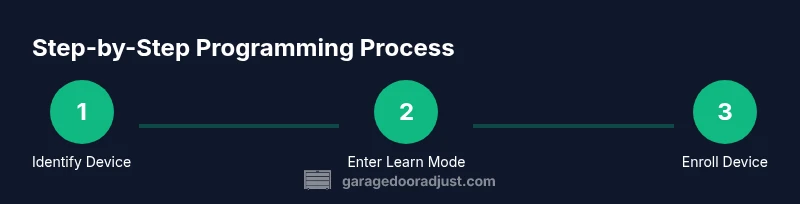
The Learn button method is the most common for modern Genies: press and hold the Learn button until the indicator light starts blinking, then quickly trigger the remote to send the code. The DIP-switch method requires setting the switches to a specific positions to match the opener’s expected code, then testing by triggering the device. Each method has its own timing window and sequence, but both aim to register a device so it can operate the door. In this section, we summarize how you approach both paths and what to expect during the process.
Programming remotes: the core process for most Genie models
For the Learn button path, press and release the Learn button on the opener, then within 30 seconds press the desired button on the remote until you hear two beeps or see the status light change. For keypad programming, enter the code sequence on the keypad unless your model uses a dedicated button. If you’re pairing multiple remotes, repeat the trigger step for each device within the time window. Smartphones and app connections follow their own pairing prompts, usually requiring you to enable Bluetooth or Wi‑Fi on the phone and confirm the pairing on the app. Always test each device after programming to confirm reliable operation.
Programming keypads, smart devices, and compatibility considerations
Keypads provide a fixed location-based control for the family and visitors, while smartphones offer convenience but require compatibility with Genie’s app ecosystem. When adding a keypad, you’ll typically enter a learning mode on the opener and then enter the keypad’s personal code. For smart device integration, ensure your opener supports the specific app and model version. Some Genies now support Wi‑Fi or Bluetooth bridging through a hub; verify that your hub, app, and door hardware are updated to the latest firmware. Keep any pairing codes in a secure place.
Troubleshooting common issues: why something might fail to program
If programming fails, first confirm you’re within the required time window and using the correct input method for your model. A common issue is attempting to enroll a device when the opener is not in learning mode or when the device’s code is already registered. Check that the remote batteries are fresh and that you’re close enough to the opener during enrollment. If codes don’t register, try removing the device from the opener’s memory and reattempt. For persistent issues, consult the manual for model-specific troubleshooting steps or contact Genie support.
Maintenance after programming: testing, battery care, and longevity tips
After successful programming, test all devices immediately and then again after closing and reopening the door. Replace remote batteries at regular intervals and keep the opener’s light cover closed to protect the wiring. Periodically re-test the codes, especially after hardware changes, such as replacing remotes or keypad batteries. A well-maintained system reduces the risk of misreads or missed signals and helps your family maintain convenient control over the door. Document which devices are enrolled and update if you replace or add a controller.
Authority and safety standards for home garage doors: what you should know
Garage doors are subject to safety standards and best practices to prevent injuries. Compliance with consumer safety guidelines helps ensure your setup is safe and reliable. For authoritative guidance, refer to CPSC safety guidelines and OSHA recommendations on machine guarding and electrical safety. While the information here focuses on programming, integrating safety checks and regular maintenance is essential for long-term safety and performance. Always follow model-specific instructions and consult official resources when in doubt.
Quick-start recap and next steps: ready to program Genie garage door opener
With the basics in place, you can proceed to enroll remotes, keypads, and apps in a controlled, step-by-step manner. Use the Learn button or dip-switch method as appropriate for your model, test each device, and verify operation after a few cycles. Keep your manual handy and maintain a simple labeling system for each enrolled device. As you gain familiarity, you’ll find programming Genie garage door opener devices becomes faster and more reliable, reducing the need for service calls and increasing daily convenience.
Tools & Materials
- Genie garage door opener remote(s)(Have at least one spare in case of battery failure)
- Step ladder(Stable surface to access the opener housing safely)
- Screwdriver set (Phillips #2 and flat-head)(Needed to access internal components if the Learn button is hidden behind a panel)
- Fresh batteries for remotes(Avoid mid-programming battery failure)
- Pen and label tape(Document the enrolled devices and codes)
Steps
Estimated time: 30-45 minutes
- 1
Verify compatibility and gather remotes
Identify your Genie model and collect all remotes, keypads, or devices you plan to enroll. Review the manual or Genie support site for model-specific instructions. This step ensures you’re using the correct method and avoids wasted time during setup.
Tip: If you’re unsure of your model, check the label on the opener housing; wrong method leads to enrollment errors. - 2
Power the system and access programming controls
Ensure power is stable and locate the Learn button or dip-switch area. Remove the light cover carefully if needed and identify the exact access point for your model. This step ensures you can reliably enter programming mode.
Tip: Use a flashlight to clearly view small labels behind the light cover. - 3
Put the opener in programming/learning mode
Activate the learning mode by pressing and holding the Learn button or by configuring the DIP switches to the required state. You’ll know you’re in mode when the indicator light blinks or changes color.
Tip: Don’t rush this step; a lingering blink often indicates the mode is active and ready to pair. - 4
Trigger the device you want to enroll
Within the specified time window, press the remote button or keypad code to send the signal to the opener. You should hear a confirmation beep or see the indicator behave as expected.
Tip: Keep the device close to the opener during enrollment to ensure a strong signal. - 5
Test enrolled devices immediately
Close and reopen the door, then test each enrolled device. Repeat for additional remotes if necessary and verify consistent operation across all devices.
Tip: Test in both directions (open and close) to confirm full control. - 6
Program keypads or mobile app if supported
If your model supports keypad or mobile app pairing, follow the on-screen prompts or manual steps to complete enrollment. These often require entering a code or signing into the Genie app.
Tip: Update the Genie app to the latest version before pairing. - 7
Exit programming mode and finalize setup
Once all devices are enrolled, exit programming mode if required and perform a final test. Label each device for easy future reference and store codes securely.
Tip: Keep a log of enrolled devices and their codes in a safe place. - 8
Document and maintain your system
Create a simple maintenance schedule: check batteries every 6–12 months, test yearly, and re-enroll devices after any hardware changes. Documentation helps you quickly troubleshoot later.
Tip: Set a calendar reminder for annual checks to prevent forgotten maintenance.
Got Questions?
What is the Learn button on Genie openers?
The Learn button is used to place the Genie opener into programming mode so you can enroll remotes, keypads, or apps. Hold or press this button according to your model’s instructions to initiate enrollment.
The Learn button puts the Genie opener into programming mode so you can enroll devices like remotes and keypads.
Why won’t my remote enroll after pressing Learn?
Common causes include being outside the enrollment window, dead batteries, or attempting to enroll an already registered device. Ensure you’re within the time window and that the remote has fresh batteries, then retry.
If enrollment fails, check the time window and batteries, then try again.
Can I program a smartphone to control Genie openers?
Some Genie models support smart-device pairing through the official Genie app. Check model compatibility, enable Bluetooth or Wi-Fi as required, and follow the in-app prompts to complete pairing.
Yes, if your model supports it, use the Genie app to pair your phone with the opener.
Do I need to hire a pro to program Genie openers?
Most homeowners can program Genie openers themselves using the Learn button or DIP switches. If you encounter persistent issues or safety concerns, consider professional assistance.
Typically you can program it yourself, but get help if you’re unsure or run into problems.
What should I do after programming is complete?
Test each enrolled device (open and close) and ensure the door stops correctly. Keep a log of devices and regularly check batteries to maintain reliability.
Test all devices and keep a log for future maintenance.
How often should I re-program remotes or keypads?
Only re-program when you replace devices, lose remotes, or modify the system. Regular checks help catch issues early.
Reprogram only when devices change or you suspect issues.
Watch Video
Quick Summary
- Identify the correct programming path for your Genie model.
- Confirm learning mode is active before enrolling devices.
- Test each enrolled device immediately after programming.
- Maintain and document enrolled devices for long-term reliability.