Merlin MyQ Garage Door: Setup and Troubleshooting Guide
A practical, step-by-step guide to installing, configuring, and troubleshooting Merlin MyQ for garage doors. Learn compatibility, safety, automations, and maintenance with expert tips from GarageDoorAdjust.


With Merlin MyQ, you will configure a seamless integration that lets you control your garage door from a single app, receive real-time status alerts, and automate opening and closing routines. This guide covers compatibility checks, essential tools, step-by-step wiring and setup, and safety considerations to help homeowners confidently install and troubleshoot the Merlin MyQ system.
Understanding Merlin MyQ: What it is and why homeowners care
Merlin MyQ is a smart garage door integration that pairs a gateway with a mobile app to give you remote control, real-time status, and automation options for your garage door. For homeowners, this can mean fewer trips to the garage and safer, faster access when coming home after dark. According to GarageDoorAdjust, when used with proper setup and safety checks, Merlin MyQ can simplify daily routines without compromising safety. The system hinges on a gateway that talks to your opener and to your home Wi-Fi, enabling you to send commands from a phone, tablet, or compatible voice assistant. The key is understanding the components, the prerequisites, and the safety steps that prevent common misconfigurations. In this section you’ll learn the core concepts and how they fit into a DIY workflow without risking safety.
Compatibility and prerequisites
Before you begin, verify that your opener and gateway are compatible with Merlin MyQ. Check the model, the required gateway version, and whether your control network supports the pairing method. Gather the tools and materials listed in theTools/M Materials section, and make sure you have a stable Wi‑Fi network. If your opener uses nonstandard wiring or has an older safety system, you may need a newer gateway or an adapter. The goal is to confirm that all pieces can communicate reliably before you start the installation. A quick pre-check saves time and avoids mid‑project roadblocks. When in doubt, consult the Merlin MyQ documentation and your garage door’s user manual to confirm compatibility, because incorrect pairing can lead to missed commands and safety warnings.
Safety and electrical considerations
Safety comes first when wiring or wiring-adjacent steps are involved. Always disconnect power to the opener before handling wiring, and use a non‑contact voltage tester to verify that circuits are de‑energized. Install the gateway in a location with good ventilation and minimal exposure to moisture. Keep doors and walkways clear during setup to prevent trips or pinching hazards. Follow manufacturer instructions for mounting brackets and use the correct screws for the surface you’re attaching to. If you’re unsure about electrical work, consider professional help. For safety references, you can consult authoritative sources such as the U.S. Consumer Product Safety Commission and OSHA for general garage door safety practices. This reduces the risk of injury and ensures your Merlin MyQ setup remains compliant with safety norms (see sources: https://www.cpsc.gov, https://www.osha.gov, https://www.consumerreports.org).
Step-by-step installation overview
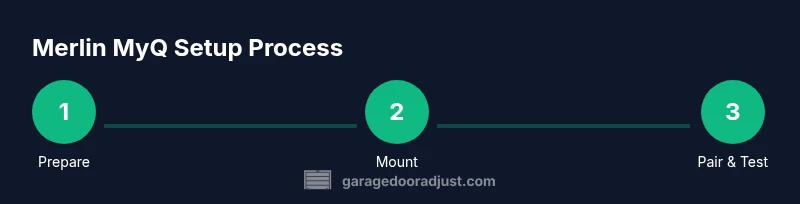
The Merlin MyQ setup involves mounting the gateway, wiring it according to the manufacturer’s instructions, and pairing it with the MyQ app. Start by powering down and inspecting the opener area for obvious hazards, then mount the gateway near the opener where it has a strong Wi‑Fi signal. Run the provided cables or use wireless pairing as directed, avoiding interference with the door’s safety sensors. Next, download and install the Merlin MyQ app, create an account if needed, and begin the pairing process. Once the gateway is recognized, test basic open/close commands from the app. If your system supports voice assistants, enable the integration in your preferred ecosystem. The middle steps require careful attention to cable routing and sensor alignment to avoid false safety triggers. In case of pairing failure, recheck your network, relaunch the app, and consult the troubleshooting section.
Configuring automations and user access
With Merlin MyQ connected, you can set automations and access rules that fit your routine. Create schedules for opening on arrival, enable remote alerts for door status, and limit certain features for family members or visitors. Consider safety-first defaults: require a status confirmation before opening, and ensure auto-close features won’t trap pets or children. Use clear naming for devices and scenes, and document your configuration so future maintenance is easy. If you have multiple users, configure account permissions and shared access carefully to prevent accidental changes. The goal is to balance convenience with security and to keep a clear audit trail of actions taken by each user.
Troubleshooting common issues
If Merlin MyQ isn’t responding, verify the gateway status lights and confirm your phone is on the same network as the gateway. Reboot the gateway and the router if needed, and re-run the pairing process. If commands lag or fail intermittently, check Wi‑Fi signal strength in the garage and minimize network congestion. If the door refuses to respond or the safety sensors trigger incorrectly, recalibrate the door’s limits and re-check that the safety reversal mechanism works properly. For detailed help, refer to the official Merlin MyQ documentation and the brand’s support resources. As part of best practices, consult the brand’s troubleshooting guide and consider consulting GarageDoorAdjust for expert tips.
Maintenance and best practices for long-term reliability
Keep the Merlin MyQ firmware up to date and monitor the gateway’s connection quality. Regularly verify door balance and sensor alignment, and perform a quick physical inspection of mounting hardware every few months. Maintain a clean power source and protect wiring from moisture and heat exposure. Periodically test all automations and voice-assistant integrations to ensure reliability as your home network changes. The GarageDoorAdjust team recommends documenting every step of your setup, so future repairs or upgrades are straightforward and safe. With careful maintenance, Merlin MyQ provides dependable convenience for daily use and peace of mind during emergencies.
Tools & Materials
- Merlin MyQ gateway and compatible device(Confirm model supports your opener)
- Smartphone with Merlin MyQ app(iOS or Android; create account)
- Garage door opener with compatible interface(Must support standard wiring or bridge compatibility)
- Ladder(Safe height to reach mounting location)
- Screwdriver set (Phillips and flat-head)(For mounting hardware)
- Power drill with bits(Drill pilot holes and drive screws)
- Mounting brackets, screws, anchors(Use hardware provided by gateway kit)
- Non-contact voltage tester(Verify power is off before wiring)
- Measuring tape(Precise placement of gateway)
- Safety equipment: gloves, eye protection(Optional but recommended)
- Cable ties and cable management(Keep wires tidy)
- Documentation: user manuals(Keep for reference)
Steps
Estimated time: 60-90 minutes
- 1
Check compatibility and gather materials
Review your opener model and gateway requirements, then assemble the listed tools and parts. Confirm that the gateway is designed to work with your specific opener. Having everything ready reduces mid-project interruptions and increases safety by ensuring you follow the correct procedure from the start.
Tip: Double-check gateway compatibility with your exact opener model to avoid mismatches and failed pairing. - 2
Power down and verify safety
Turn off power to the garage opener at the circuit breaker, then use the voltage tester to ensure the circuit is de-energized. This minimizes shock risk while mounting or wiring. Keep the area clear of cords and pets during this step.
Tip: Always test the wires after turning off power to confirm no voltage is present before touching them. - 3
Mount the Merlin MyQ gateway near the opener
Choose a high, dry location with a solid surface and strong Wi‑Fi reach. Use the included brackets and hardware to mount the gateway away from moving parts. Avoid placing the gateway where it could be struck by the door or caught in the door path.
Tip: Mount the gateway within line of sight of the opener’s control module but away from moisture and extreme heat. - 4
Connect gateway to the garage door opener
Follow the gateway’s installation guide to connect wiring or establish a wireless bridge as prescribed. Maintain the door’s safety sensor placement and ensure wires are neatly routed to avoid pinch points. Do not bypass or disable safety features.
Tip: Keep wires tidy with cable ties and avoid bending cables sharply near connectors. - 5
Pair the gateway with the Merlin MyQ app
Open the Merlin MyQ app, create or sign into your account, and initiate the pairing flow. Ensure your phone is on the same Wi‑Fi network as the gateway during setup. Complete any on-screen prompts until the app confirms a successful connection.
Tip: If pairing stalls, restart the gateway and router, then retry the flow from the app. - 6
Configure automations and user access
Set up desired schedules, alerts, and permissions for household members. Use safe defaults, like requiring status confirmations or adding geo-fencing for automatic open when you arrive. Label devices clearly and maintain an accessible record of configurations.
Tip: Document each automation and permission so future changes are easy to manage. - 7
Test operation and calibrate
Run multiple open/close cycles from the app and any linked voice assistants. Check the door’s safety reversal function and re‑calibrate limits if necessary. Validate that app status reflects the actual door position and that automations trigger reliably.
Tip: Test with a temporary obstruction to confirm safety sensors respond correctly.
Got Questions?
Is Merlin MyQ compatible with all garage door openers?
Compatibility depends on your opener and gateway version. Always check the Merlin MyQ documentation and your opener's manual to confirm support before purchasing.
Compatibility depends on your opener and gateway version; check the manuals before buying.
Do I need a professional to install Merlin MyQ?
Many homeowners can install Merlin MyQ themselves if wiring is straightforward and safety sensors remain intact. Seek a pro if you encounter electrical work or uncertain wiring.
You can usually install it yourself if wiring is straightforward, but hire a pro for complex electrical work.
What safety checks should I perform after installation?
Test the door’s auto-reverse function, verify sensor alignment, and ensure the app accurately reflects door status. Recalibrate limits if the door misbehaves.
Test auto-reverse and sensors; ensure app status matches the door.
How do I reset pairing if it fails?
Use the app’s reset option and perform a gateway reset if needed, then re-run the pairing process following prompts carefully.
Reset the gateway, then re-pair using the app prompts.
Can I control Merlin MyQ with voice assistants?
Yes, if your ecosystem supports the gateway. Enable the integration in your smart-home platform and test voice commands.
Yes, with compatible ecosystems; enable the integration and test commands.
Watch Video
Quick Summary
- Verify compatibility before starting.
- Pair the gateway securely to avoid drops.
- Configure automations with safety in mind.
- Regularly calibrate door balance and sensors.
- Document setup for future maintenance.