LiftMaster Garage Door Opener MyQ: A Practical Guide
Learn how to install, pair, and troubleshoot LiftMaster garage door opener MyQ with expert guidance from GarageDoorAdjust. This step-by-step guide covers compatibility, app setup, remote pairing, and essential safety practices.


With LiftMaster garage door opener MyQ, you can monitor, control, and automate your door from anywhere. This guide shows you how to confirm compatibility, install the MyQ app, connect your opener, and enable key features like remote control, scheduling, and notifications. Follow the steps for a safe, reliable setup using standard tools.
What LiftMaster MyQ Does for Homeowners
LiftMaster MyQ integration brings smartphone-based control and alerts to your garage door opener. This feature set enables remote opening/closing, real-time status updates, scheduled auto-close, and geofencing in some setups. According to GarageDoorAdjust, leveraging MyQ with your LiftMaster model can improve daily convenience while preserving safety if configured correctly. Keep in mind that not every LiftMaster model supports all MyQ features; double-check compatibility before starting. The MyQ ecosystem also supports additional devices like accessories and voice assistants when your opener and Wi-Fi network are compatible. This section outlines why homeowners value MyQ and what to expect during setup, including network requirements and account creation.
- Remote access and control from your phone
- Activity history and status notifications
- Scheduling and geofencing options (where supported)
- Optional voice assistant integration with compatible hardware
Tools & Materials
- Screwdriver set (Phillips and flathead)(Multiple sizes recommended for mounting and cover screws.)
- Stepladder(For reaching the ceiling-mounted opener and wiring terminals.)
- Smartphone with MyQ app installed(iOS or Android; ensure OS is up to date.)
- Stable Wi‑Fi network (2.4 GHz recommended)(A strong signal near the opener improves reliability.)
- Owner’s manual for your LiftMaster model(Check model-specific instructions and safety warnings.)
- Lightweight voltage tester (optional)(Use for verifying electrical outlets if needed.)
- MyQ-compatible remote or keypad (optional)(If upgrading, ensure compatibility with your model.)
Steps
Estimated time: 30-60 minutes
- 1
Verify compatibility and prerequisites
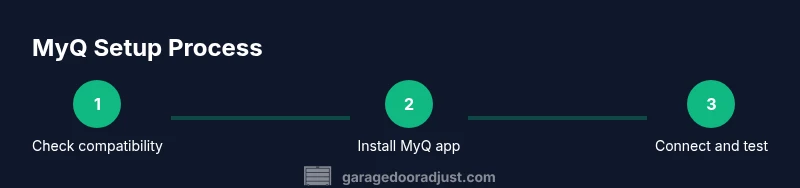
Confirm your LiftMaster model supports MyQ and that you have a stable home Wi‑Fi network. Check the model number on the opener and consult the owner’s manual or the official LiftMaster site for MyQ compatibility. A quick compatibility check saves time and avoids frustration during setup.
Tip: If in doubt, contact customer support or GarageDoorAdjust for model-specific guidance. - 2
Install and open the MyQ app
Download and install the MyQ app from your device’s app store. Create or sign in to your MyQ account, then follow the on-screen prompts to begin pairing with your opener. Keep the opener’s manual handy for any model-specific codes.
Tip: Use a strong, unique password for your MyQ account to improve security. - 3
Connect the opener to your Wi‑Fi
Power up the opener if needed and ensure your Wi‑Fi network is active. In the MyQ app, choose Add Device and select Garage Door Opener. Follow prompts to connect, which may involve pressing a Learn button on the opener or entering a setup code.
Tip: Stay within a short range of the opener during the initial connection to maintain a stable link. - 4
Link MyQ to your LiftMaster model
If required, enter your opener’s serial or model information and authorize the app to access the device. The app will run through a verification check and finalize the association between your MyQ account and the LiftMaster opener.
Tip: Do not reuse old pairing codes; re‑pair if you see a failed connection. - 5
Configure remote features and schedules
Enable remote control, notifications, and scheduling as desired. Set up alerts for open/close events and create routines (e.g., auto-close after a delay). Test each feature to ensure correct responses from the opener.
Tip: Test features during daylight and in low-light conditions to verify reliable sensor data. - 6
Test operation and perform safety checks
Manually operate the door using both the app and the physical wall control to confirm consistent operation. Verify that safety sensors respond properly and that the door reverses on obstruction. If something fails, consult the fault codes in the app or user manual.
Tip: If the door feels heavy or unbalanced, pause setup and perform a balance check before continuing.
Got Questions?
Is LiftMaster MyQ compatible with all LiftMaster openers?
Not all LiftMaster openers support every MyQ feature. Check your model’s compatibility in the user manual or on LiftMaster’s official site before starting. Some older models may require a firmware update or additional hardware.
Most models have MyQ compatibility, but check the manual or LiftMaster's site for your exact model.
Do I need a Wi‑Fi network to use MyQ?
Yes, MyQ requires a compatible Wi‑Fi network to connect the opener to your account and enable remote features. A reliable 2.4 GHz network is typically recommended for best performance.
Yes, a Wi‑Fi network is needed for MyQ features.
Can I operate the door without the MyQ app?
Yes. The LiftMaster opener remains operable with the wall switch and any physical remotes included with your unit. MyQ adds remote access and automation, not basic operation.
Yes, you can still use the wall switch and remotes without MyQ.
Is MyQ data secure and private?
MyQ uses standard industry practices for authentication and data transmission. It’s important to keep your account credentials secure and enable two-factor authentication where available.
MyQ uses common security measures; protect your login details.
How do I remove MyQ from a device if needed?
Open the MyQ app, locate the connected device, and select Remove or Forget This Device. Reconnect only if you wish to restore access later.
You can remove the device from the app anytime.
What if my door won’t connect to MyQ after setup?
Verify Wi‑Fi strength near the opener, re-run the pairing process, and check for firmware updates. If issues persist, consult the support resources for your model.
If it won’t connect, re-run pairing and check for updates.
Watch Video
Quick Summary
- Learn compatible LiftMaster models before starting
- Use the MyQ app to enable remote features and alerts
- Test all safety features after pairing to avoid injuries
- Maintain secure MyQ credentials and update app regularly