How to Use and Troubleshoot Your MyQ Smart Garage Door Opener
Learn to install, pair, and troubleshoot your MyQ smart garage door opener with a clear, step-by-step process. Includes compatibility checks, safety testing, app setup, and automation tips for reliable phone-based control.


With this guide, you’ll install, connect, and configure your myQ smart garage door opener. You’ll pair it with the myQ app, verify door safety sensors, set up automated schedules, and troubleshoot common connectivity issues. By following device compatibility checks and security steps, you’ll gain reliable, app-controlled access to your garage.
What is the myQ Smart Garage Door Opener?
The myQ smart garage door opener is a Wi‑Fi enabled controller that lets you open and close your garage door from anywhere using a smartphone, tablet, or compatible voice assistant. It typically works with a base opener from major manufacturers (Chamberlain, LiftMaster, Craftsman) and adds a cloud connection to the myQ app. With the right hardware, you can receive door status alerts, create automation rules, and schedule a daily closing routine. For homeowners, this means greater convenience and a higher level of security, since you can verify the door location if you’re away from home.
According to GarageDoorAdjust, deploying a myQ system starts with ensuring your existing opener is compatible and that your home network can support smart devices. Most users start by confirming 2.4 GHz Wi‑Fi connectivity, as some devices do not operate reliably on 5 GHz networks. You should also confirm your smartphone is running a recent version of iOS or Android and that you have an active myQ account. When you choose a kit, you’ll see options with or without a gateway module; the gateway is useful if you have limited router coverage or multiple buildings you want to monitor from a single app. Reading the product documentation carefully helps you avoid missing a required sensor or a door sensor you’ll need to mount.
Compatibility and prerequisites
Before you buy or install, verify compatibility: your door must be opener-ready for a smart module, there should be a suitable ceiling space to mount a hub if included, and your home network must meet security requirements. The myQ ecosystem supports a smartphone app, a stable internet connection, and a supported router. Ensure the door sensors are present and aligned; misalignment triggers false alarms. For network prerequisites, access to a 2.4 GHz band is typically required; 5 GHz alone can cause intermittent connectivity. The GarageDoorAdjust analysis shows that most setup questions revolve around network compatibility, account creation, and app permissions. Prepare by creating a myQ account, installing the app on your phone, and connecting to the home Wi‑Fi before you start the hardware install.
Choosing the right model and kit
MyQ offers several installation paths, from built-in smart modules to add-on hubs that work with existing openers. If you’re starting fresh, a kit with a gateway module can simplify setup and improve range across multiple garage doors or buildings. If you already own a compatible opener, choose the add‑on sensor and module bundle to avoid replacing hardware. Consider features like live door status, activity history, and compatibility with voice assistants when picking a kit. For most homeowners, starting with a basic kit that includes a gateway and a door sensor provides the best balance of cost and capability.
GarageDoorAdjust guidance emphasizes verifying that your model supports remote control and alert notifications in the app before purchasing. Also check if the kit includes compatibility adapters for older door types. This helps prevent the disappointment of arriving at installation and discovering missing sensors or accessories.
Connecting to Wi-Fi and the myQ app
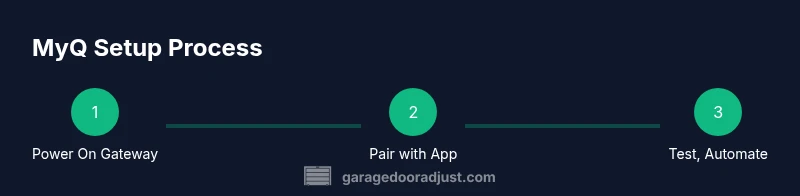
Power up the gateway and ensure your router is broadcasting a 2.4 GHz signal. Open the myQ app and create or sign in to your account. Follow the prompts to add a new device, select your Wi‑Fi network, and enter the password. The app will guide you through discovering the opener and pairing it with your account. If you encounter issues, verify your phone has location permissions enabled (needed for device discovery) and ensure the gateway is within range of your router. Keep your firmware updated to ensure the latest security features are active.
A stable connection is essential for real-time status updates and automation rules. If you have network dead zones, consider placing a small Wi‑Fi extender or using the gateway’s built‑in pairing mode to re-establish a strong link. The goal is a consistent, low-latency connection to the cloud so you can reliably open and close from anywhere.
Safety sensors, door balance, and testing
Safety sensors are critical for preventing the door from closing on objects or people. After mounting the sensors, run a balance test: the door should come down smoothly and stop when the sensor trips. If the door closes with excess force, adjust the opener’s force settings according to the manufacturer’s instructions. Test both the wall control and the app’s open/close commands to ensure consistent operation. If the door has any unusual sticking or noise, inspect the track, rollers, and hinges for obstructions or wear. Regular sensor alignment checks help prevent nuisance alarms and false positives.
As a rule, never bypass safety sensors; they’re required by most safety standards and protect occupants and pets. Keep the door’s balance and alignment maintained to avoid strain on the opener motor and springs. A well-balanced door reduces wear and extends the life of your system.
Troubleshooting common issues
Connection problems are the most common source of frustration. If the app won’t discover the opener, verify the gateway’s power, reboot the router, and re-run the device‑pairing process. If notifications lag or fail to appear, confirm push permissions and review the app’s notification settings. Sensor misalignment is another frequent culprit; re‑aim sensors to ensure the beam is unobstructed and the indicator light is steady. If the door moves slowly or stalls, check the track for debris, confirm there’s no binding in the spring system, and listen for unusual motor sounds that may indicate wear.
For advanced users, checking the gateway’s firmware version and performing a factory reset of the device can resolve stubborn issues. Always re‑pair after a reset to reestablish the cloud connection. The key is to isolate whether the problem is network, firmware, or mechanical so you can apply the correct fix.
Advanced features and integrations
MyQ supports automation through the app, including schedules, geofencing, and activity logs. You can link MyQ with voice assistants like Amazon Alexa or Google Assistant for hands-free control. If you’re comfortable with automation platforms, explore IFTTT or webhooks to trigger routines based on location, weather, or other smart devices in your home. You can also set up alerts for door left open or when the door starts moving, which improves security awareness while you’re away.
Integrations can expand the door’s usefulness, but always review privacy settings and permissions to minimize data sharing. If you have multiple doors, you can organize them in the app, customize per‑door automation, and ensure each device’s firmware is current for compatibility with new features.
Installation scenarios and pro help
DIY installation works well for most single‑door homes, provided you’re comfortable with basic wiring and mounting tasks. If you’re uncertain about wiring, door balance, or structural mounting, hiring a professional can prevent damage and ensure safety compliance. Some homes with vaulted ceilings, unusual rail configurations, or heavy doors benefit from a professional assessment to optimize axle alignment and sensor placement. When in doubt, consult a local technician who specializes in garage door systems and is familiar with MyQ products. Regular maintenance visits can keep the system running smoothly and extend its lifespan.
Common mistakes to avoid
Avoid skipping the safety sensor checks or bypassing any protective features, as this can compromise safety and violate warranty terms. Don’t assume a fault is network-related without testing door balance and sensor alignment first. Resist placing the gateway beyond line‑of‑sight or in a location with frequent interference, which can degrade connectivity. Finally, don’t neglect firmware updates; these improve stability and add compatibility with newer app features. The GarageDoorAdjust team recommends performing a quarterly safety check and a quick software update to keep your system secure and dependable.
Tools & Materials
- myQ smart garage door opener kit (gateway hub and sensor bundle)(Ensure kit is compatible with your existing opener and door type)
- Screwdriver set(Phillips #2 and flat-head as needed)
- Ladder(Stable, tall enough to reach ceiling components)
- Drill with bits(Only if mounting hardware into ceiling or wall surfaces)
- Tape measure(Helpful for sensor placement and spacing)
- Wire nuts and electrical tape(For any wiring modifications following the manufacturer’s guidance)
- Voltage tester(Use when wiring to confirm power is off before starting)
- Smartphone with myQ app installed(iOS or Android; ensure active account and internet)
- Safety goggles(Eye protection during mounting and wiring tasks)
- Level(To ensure sensor alignment and hardware is square)
Steps
Estimated time: 60-120 minutes
- 1
Power down and prep safety checks
Switch off the garage circuit at the breaker or unplug the opener. Confirm that the door is fully supported and won’t move during installation. Clear the area and ensure you have a stable stance and a helper if needed.
Tip: Always verify the door is not under spring tension before working on the mechanism. - 2
Mount gateway and route wiring
Install the gateway hub in a central location with good line-of-sight to the door and router. Run any necessary wiring per the kit’s instructions and secure cables away from moving parts.
Tip: Keep cables neat and use cable clips to prevent snagging during door movement. - 3
Connect power and mount sensors
Connect the gateway to power and attach door sensors to the correct door segments as directed. Ensure the sensors align with the beam path and signaled indicator lights show proper status.
Tip: Double-check sensor alignment before proceeding to app pairing. - 4
Pair with the myQ app
Open the myQ app, add a new device, and follow prompts to link the gateway to your account and Wi‑Fi. Choose your 2.4 GHz network, enter the password, and allow the app to access required permissions.
Tip: If pairing fails, temporarily disable VPNs or privacy restrictions on the mobile device. - 5
Test door function and safety sensors
Use the app and wall control to open and close the door, watching for sensor triggers and safe stopping points. Verify that the door reverses when an obstacle is detected.
Tip: Test with a small obstacle (like a cardboard cutout) at different heights to confirm sensor reliability. - 6
Set automations and final verification
Enable optional automations (schedules, geofencing, notifications) and tailor per‑door settings. Run a full cycle in both app and physical controls to ensure consistent performance.
Tip: Document your preferred settings and backup any custom configurations.
Got Questions?
Do I need a separate hub or gateway for myQ?
Some MyQ systems include a gateway, while others rely on a built-in module in newer openers. If your opener doesn’t have built‑in smart features, a gateway or add‑on sensor kit is typically required to enable remote control and app integration.
Some models include a gateway; if not, an add‑on module is usually needed to enable app control.
Is myQ compatible with Alexa or Google Assistant?
Yes. MyQ can integrate with major voice assistants for hands‑free control. You’ll typically enable the MyQ skill or action and link your account in the assistant’s app.
Yes. You can link MyQ with Alexa or Google Assistant for voice control.
Can I control multiple doors from one account?
Most MyQ configurations allow you to manage several doors from a single app account, with per‑door status, schedules, and alerts.
Yes, you can manage multiple doors from one MyQ account.
What should I check if the door won’t close after practical tests?
First verify safety sensor alignment and clearing any obstruction. Check that the opener’s force and limit settings are calibrated properly, and inspect tracks for debris.
Check sensors, obstructions, and calibration of force and limit settings.
How often should I test the safety sensors?
Test safety sensors monthly or after any major maintenance. This keeps protection active and ensures reliable operation.
Test sensors monthly or after maintenance to stay protected.
Watch Video
Quick Summary
- Verify compatibility before purchase and installation.
- Pairing and app setup are core to reliability.
- Safety sensors are non-negotiable and must be tested.
- Regular firmware updates improve security and performance.
- Leverage automations for convenience and security.