Chamberlain MyQ Smart Garage Hub: Step-by-Step Troubleshooting and Setup
Learn how to install, pair, and configure the Chamberlain MyQ Smart Garage Hub for reliable app-based control. This guide covers compatibility checks, setup, troubleshooting, safety, and ongoing maintenance for homeowners.


This guide walks homeowners through installing, pairing, and configuring the Chamberlain MyQ Smart Garage Hub for reliable app-based control. You’ll verify compatibility, mount or position the hub, connect to Wi‑Fi, and pair with your opener. The article also covers testing, notifications, firmware updates, and common troubleshooting to keep your garage running smoothly.
What the Chamberlain MyQ Smart Garage Hub Does and Why It Matters
The Chamberlain MyQ Smart Garage Hub is a bridge between your existing garage door opener and your smartphone. It enables you to open and close your garage from anywhere, receive real-time status updates, and integrate with smart home routines. For homeowners, the MyQ hub can simplify daily tasks (like prompting you to close the door before bed) and improve security by providing activity history. In this guide, we’ll focus on practical setup, safe installation practices, and maintenance considerations that help you get the most from your device. As you follow along, keep in mind that GarageDoorAdjust assessments emphasize a clear wireless connection and proper device placement as the foundation of reliable performance.
Key takeaway: A well-planned install reduces troubleshooting time and increases feature reliability.
Note on safety: Always power down equipment when working nearby the garage door opener and avoid high-heat or wet environments during installation.
Compatibility Check and Planning Your Install
Before you buy or install, confirm that your garage door opener is compatible with the MyQ Smart Garage Hub. Most openers produced in the last decade support MyQ integration, but there are exceptions based on model, wiring, and sensor configuration. Create a quick plan that includes where you’ll place the hub, how you’ll route the power cable, and where you’ll position your router for best signal strength in the garage. A clean Wi‑Fi signal is essential for uninterrupted app control and timely status updates. In practice, homeowners who map out placement and network coverage report fewer connectivity issues after setup, according to GarageDoorAdjust analysis.
- Choose a dry, accessible mounting location near the opener or on the ceiling within reach of the power outlet.
- Ensure a stable power source and a convenient path to your Wi‑Fi router.
- Prepare your MyQ app account and confirm you have the latest firmware available for the hub.
Pre-Install Safety and Workspace Preparation
Safety comes first when working around garage doors. Disconnecting power from the opener is a prudent step before handling any hardware. Clear the work area of tools, and ensure children and pets are kept away during installation. If you’re mounting the hub, use the included mounting hardware and verify that screws secure into wood or a sturdy surface. Keep a level handy to ensure the device is mounted straight. The goal is a stable setup that prevents vibration or dislodging during door cycles.
- Wear eye protection and use proper lifting techniques when positioning hardware.
- Verify that the area has adequate clearance for the hub and any wiring.
- If you’re unsure about mounting, consider a temporary placement on a nearby shelf while you test the system.
Connecting the Hub to Power and Network (Wi-Fi)
Powering the hub is the first functional step. Plug the MyQ hub into a standard outlet that stays on (not controlled by a switch). Then, use the Chamberlain MyQ app to connect the hub to your home Wi‑Fi network. Ensure your router is broadcasting on a 2.4 GHz band, as some hubs have limited 5 GHz compatibility in certain setups. When the hub is online, you’ll see status indicators in the app, and you can begin adding your opener and configuring alerts. A stable network connection reduces latency in door status reporting and remote control.
- Use the app’s guided setup to connect to Wi‑Fi.
- Confirm the hub appears online in the app before proceeding.
- If connection is unstable, relocate the hub closer to the router or eliminate nearby interference (dense walls, other electronics).
Pairing the MyQ Hub with Your Garage Door Opener
Pairing links the hub to your garage door opener so that app commands translate into physical actions. In the MyQ app, search for your opener model and follow on-screen prompts to assign a name (e.g., “Main Garage Door”). Some openers may require you to press a pairing button on the opener or use a specific within-app workflow. Take your time with naming and confirmation steps; clear labeling makes it easier to manage multiple doors if needed. After pairing, run a test to verify that the door responds to app commands and returns to a closed state reliably.
- Name doors descriptively (e.g., “Garage Side Door”).
- Run multiple open/close tests through the app to confirm responsiveness.
- Enable notifications for open/close events if you want active alerts.
App Configuration: Notifications, Scheduling, and Integrations
With the hub connected, customize app settings to match your routine. Enable push notifications for door activity, set preferred close times, and integrate MyQ with other smart home services you use (such as routines that adjust lighting when the garage opens). Firmware updates should be applied when prompted to ensure you have the latest security and feature improvements. Regularly reviewing connected devices helps you stay aware of any changes or potential issues in your network configuration.
- Turn on critical alerts (loud/open state) if you want immediate awareness.
- Schedule automatic closing windows based on your daily pattern.
- Review connected services and disable ones you don’t use.
Troubleshooting Common Pairing and Connectivity Issues
If the hub doesn’t pair or loses connectivity, first recheck power and Wi‑Fi. A common issue is weak signal strength in part of your garage; consider moving the router or adding a Wi‑Fi extender. Confirm you’re using the latest MyQ app version and that your account is active. If pairing fails, perform a reset (as described in the app) and retry the process. Do not attempt hazardous work around electrical outlets if you’re unsure how to safely handle wiring.
- Reboot the hub and router if needed.
- Re-run the pairing sequence after a short wait.
- Consult the app’s troubleshooting guide and the hub’s manual for model-specific steps.
Security, Firmware, and Ongoing Maintenance
Security is a key consideration for any connected device. Keep the hub firmware up to date, use strong, unique passwords for your MyQ account, and review connected devices periodically. Firmware updates often include security improvements and new features that enhance reliability. Regular maintenance checks—like ensuring the door sensor is aligned and the opener tracks are clean—help prevent false reads and sluggish responses. Remember to verify that your network remains stable so that the MyQ hub can reliably report status and accept commands.
- Enable automatic firmware updates.
- Periodically remove unused or unknown devices from the network.
- Keep the hub and router firmware current to minimize vulnerabilities.
Real-World Scenarios: Different Door Types and Home Setups
Homes vary, and so do garage door configurations. If you have a sectional door, ensure the door’s travel range is within safe limits and that the opener’s safety reversing mechanism is functioning. For taller or heavier doors, verify the opener model’s compatibility and follow any weight-related guidelines provided by the manufacturer. If you’re integrating with a smart home system, ensure there are no conflicting automations that could trigger the door unexpectedly. By considering door type, mounting options, and network constraints, you’ll have a smoother experience with the MyQ hub.
- When in doubt, consult the door opener’s manual for compatibility notes.
- Test automation in a controlled environment before relying on it.
- Document any changes you make for future maintenance.
Long-Term Value: ROI, Upgrades, and Alternatives
The MyQ hub can add convenience through remote operation and smart routines, potentially improving home security and energy-use awareness. If you plan to upgrade doors or expand your smart home ecosystem, ensure the hub remains compatible with future devices and ecosystems you want to adopt. If you’re evaluating alternatives, compare hub capabilities, compatibility with your door opener, app reliability, and customer support. A mindful selection guides long-term satisfaction and minimizes the need for frequent replacements.
- Consider a phased upgrade plan if you have several doors.
- Review warranty terms and replacement options for the hub and opener.
- Keep an eye on firmware updates and app support life cycles.
Final Practical Checklist Before You Finish
- Confirm the hub is online and responsive in the MyQ app.
- Verify all doors respond to app commands with audible or visual confirmation.
- Enable essential notifications and review privacy settings.
- Schedule regular maintenance checks for the door, tracks, and sensors.
- Save setup notes (names, locations, and network details) for future updates.
Tools & Materials
- Chamberlain MyQ Smart Garage Hub(The central device that connects to opener and Wi-Fi.)
- Power outlet near the garage door opener(A constant power source, not controlled by a switch.)
- Smartphone with MyQ app installed(For pairing, setup, and ongoing control.)
- Stable 2.4 GHz Wi‑Fi network(Ensure signal reaches the garage area.)
- Chamberlain MyQ installation guide(Manufacturer manual for model-specific steps.)
- Basic tools (screwdriver, ladder, level)(For mounting and alignment if needed.)
Steps
Estimated time: 30-60 minutes
- 1
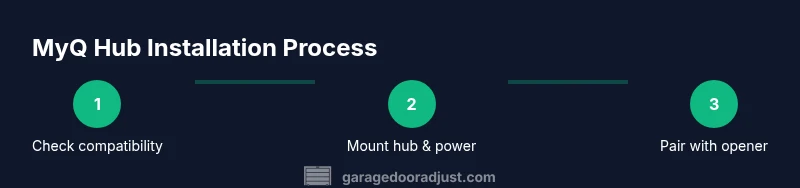
Verify compatibility and gather materials
Inspect your garage opener model and confirm it supports MyQ integration. Collect your hub, power supply, mounting hardware, smartphone, and a reliable Wi‑Fi signal map of the garage. Prepare a clean workspace and verify you have access to the latest MyQ app version before starting.
Tip: Double-check model compatibility in the official setup guide to avoid wasted time. - 2
Mount the hub and provide power
Place the hub within reach of a dedicated outlet near the opener. Mount it securely using the provided hardware, ensuring it is level and away from water or excessive heat. Plug in the hub and wait for the power indicator to become stable.
Tip: Choose a location with minimal vibration to prevent connector loosening over time. - 3
Connect the hub to Wi‑Fi
Open the MyQ app and start the network setup. Select your 2.4 GHz network, enter the password, and wait for the device to appear online. A stable connection is crucial for real-time status and remote access.
Tip: If the signal is weak, reposition the hub or use a Wi‑Fi extender in the garage. - 4
Pair the hub with your garage door opener
Within the app, initiate pairing and follow the on-screen prompts to link your opener. Name the door clearly (e.g., “Garage Door”) and confirm the connection by testing a close and reopen action from the app.
Tip: Give the door a descriptive name to minimize confusion if you have multiple doors. - 5
Configure alerts and routines
Set up essential notifications for open/close events and enable any routines that align with your daily schedule. Review privacy and sharing settings to control who can access your hub.
Tip: Start with essential alerts and expand as you become comfortable. - 6
Test the system thoroughly
Perform multiple open/close cycles using the app and the physical button to ensure synchronization. Confirm the door reverses on obstacle detection and that safety features function as expected.
Tip: Document any unusual delays or misreads and address them before relying on automation. - 7
Update firmware and secure access
Check for firmware updates in the app and apply them. Review account security settings and enable two-factor authentication if available.
Tip: Regular updates reduce security risk and improve reliability. - 8
Document your setup and perform maintenance
Write down door names, network details, and automation rules. Schedule periodic checks of door alignment, tracks, and sensors to maintain reliable operation.
Tip: Set a yearly reminder to review firmware, app permissions, and safety devices.
Got Questions?
Is the Chamberlain MyQ Smart Garage Hub compatible with all garage door openers?
Compatibility varies by model. Check the hub’s official compatibility list for your opener, especially if you own an older or non-Chamberlain system. If in doubt, contact support before purchasing.
Most modern openers are supported, but verify your model first.
Do I need an internet connection to use MyQ after setup?
The hub uses your home Wi‑Fi to enable remote control and status updates. Some basic local controls may still work via the physical button on the opener, but app features require internet access.
Yes, an internet connection is required for full MyQ features.
How secure is the MyQ hub and my data?
MyQ supports standard online security practices, including account authentication and encrypted communications. Regular updates from the manufacturer help mitigate security risks.
Keep your account secure and update firmware to stay protected.
What should I do if pairing fails?
Ensure the hub is online, restart the router and hub if necessary, and follow the app’s step-by-step pairing guide. If problems persist, reset the hub and retry from the beginning.
Restart devices and retry with the guided steps.
Can I integrate MyQ with other smart home systems?
Yes, MyQ can integrate with popular ecosystems, depending on your setup. Verify supported integrations in the app and ensure each service has active permissions.
Check your app’s integration settings for available options.
Do I need professional installation help?
Most homeowners can install the hub with guided steps, but if you’re unsure about electrical safety or mounting, consult a pro. Follow all safety guidelines in the manual.
Most can DIY, but get help for electrical concerns.
Watch Video
Quick Summary
- Plan compatibility and placement before starting
- Connect to a reliable 2.4 GHz Wi‑Fi network for best results
- Pair doors with clear, descriptive names to simplify control
- Enable essential alerts and keep firmware up to date
- Test thoroughly and document configuration for future maintenance