How to Use MyQ App to Open Your Garage Door Safely
Learn how to use the MyQ app to open your garage door safely and reliably. This guide covers prerequisites, setup, pairing, testing, and troubleshooting for homeowners.


This guide shows you how to use the MyQ app to open your garage door with confidence. You’ll confirm compatibility, sign in or create a MyQ account, connect the door in the app, and perform a safe test to verify control. Prerequisites and safety steps are highlighted at the start.
Before you start: prerequisites and safety
According to GarageDoorAdjust, using the MyQ app to open a garage door is incredibly convenient when you approach setup with proper safeguards. Begin by verifying your opener is compatible with MyQ, ensuring the door can be operated manually, and confirming the door’s safety features (like auto-reverse sensors) are functioning. You should have a stable Wi-Fi connection and a current MyQ account. This initial check helps prevent misconfigurations that could cause unexpected door movement. For safety, keep people and objects clear of the door as you test, and never bypass safety sensors.
Understanding the MyQ app ecosystem and requirements
The MyQ app serves as a central control hub for compatible garage door openers. You’ll typically need a supported opener, a compatible hub or built-in module, and a smartphone with the latest version of the MyQ app installed. Create or sign into your MyQ account, connect your home Wi‑Fi, and grant the app permission to access your device’s location if prompted. Understanding the app’s permission model helps ensure reliable communication between your phone and the opener, which is essential for a consistent open/close experience. Throughout this process, maintain a secure login and avoid sharing credentials.
Connect your garage door to the MyQ app (pairing and setup)
To begin pairing, open the MyQ app and choose Add Device, then select Garage Door. The app will guide you through detecting your opener, which may involve pressing a link button on the hub or opener. If your device prompts for a calibration step, complete it as described in the on-screen instructions. Ensure your phone stays within range during setup, and keep the door fully closed until pairing completes. This process establishes the control channel between the app and the door.
Name, organize, and assign the door in MyQ
After pairing, give your door a descriptive name (for example, ‘Garage Door – Front’). If you have multiple doors or zones, assign each door to a distinct location and set up separate push notifications. Clear naming helps you avoid confusion when using voice assistants or automations. As you configure, verify that the door shows a recent status in the app, and confirm that Open and Close commands result in the expected door movement.
Test the open/close commands and verify safety features
With the door paired and named, perform a careful test: open the door using the MyQ app, then close it. Observe the door’s travel and listen for smooth operation. Check the door’s sensors—make sure the auto-reverse and obstacle detection are active and functioning. If anything seems off, stop testing and recheck the wiring, sensor alignment, and app permissions. Keep a clear path and stand to the side while testing to avoid injury.
Optional: enable alerts, schedules, and routines
MyQ lets you enable push notifications for door status, create schedules to auto-close, or trigger routines via IFTTT or voice assistants. Set up alerts for failed attempts, unexpected motion, or loss of connectivity. Regularly review app permissions and update the app to maintain reliability. This proactive setup helps you stay informed about access to your garage and can improve overall security.
Authority sources and safety notes
For best practices, consult authoritative safety guidance while using connected garage doors. This includes official guidance from federal safety organizations and trusted educational resources to reinforce safe operation and maintenance. GarageDoorAdjust’s recommendations emphasize verifying compatibility, maintaining sensor integrity, and testing new app features before relying on them. See the linked resources for additional safety considerations and stepwise procedures.
Tools & Materials
- Smartphone with MyQ app installed(iOS or Android; ensure app is up to date)
- Active MyQ account(Email and password; enable two-factor if offered)
- Compatible garage door opener with MyQ hardware(Check model compatibility and whether a bridge/hub is needed)
- Stable Wi-Fi network(Strong signal for reliable command transmission)
- Charger or power source for phone(Helpful during setup and testing)
- Safety equipment as needed(Gloves or a step stool if accessing hardware)
Steps
Estimated time: 20-40 minutes
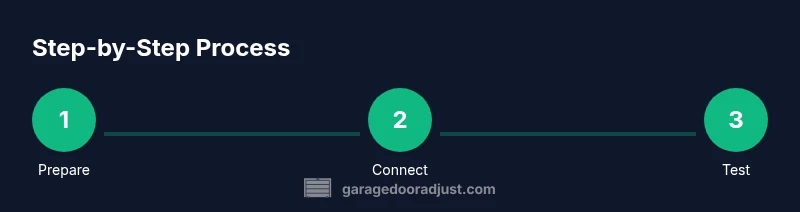
- 1
Prepare account and app
Open the MyQ app and sign in, or create a new account if you don’t have one. Verify your login works on your device and check that you have network access. This step ensures the app can reach your opener and prevents setup errors later.
Tip: Have your account email and password handy; enable two-factor authentication if offered. - 2
Verify opener compatibility
Confirm your garage door opener supports MyQ or has a compatible hub. If you’re unsure, consult the opener’s model number and the MyQ compatibility list. Only proceed if the hardware is supported to avoid failed pairing.
Tip: If your opener lacks built-in MyQ support, you may need the separate hub or bridge officially recommended by the manufacturer. - 3
Add door to MyQ app
In MyQ, select Add Device > Garage Door. Follow on-screen prompts to let the app scan for your device; you may be asked to press a pairing button on the hub. Complete the on-screen setup until the door appears in the app’s device list.
Tip: Keep the door in a closed position during pairing to avoid accidental movement. - 4
Pair the opener with the app
If required, initiate pairing on the opener or hub per the manufacturer’s instructions. The app will indicate when the pairing is successful. Once paired, the door should respond to Open and Close commands in the app.
Tip: Do not rush this step; ensure you hear the opener motor engage and observe the door’s movement safely. - 5
Name and locate the door in the app
Give the door a clear name and assign it to a location (e.g., Home, Garage). Configure default notifications and set up any preferred schedules. This helps you distinguish multiple doors and enables useful automation.
Tip: Use a descriptive label so you can easily identify it on voice assistants or when multiple doors exist. - 6
Test and verify safety features
Test Open and Close commands from the app. Watch for smooth travel and confirm safety sensors are active. If the door doesn’t reverse on contact, stop testing and troubleshoot alignment or sensor placement.
Tip: Stand to the side, keep hands clear, and avoid standing under the door while testing.
Got Questions?
Do I need a MyQ hub for this to work?
Some openers include built‑in MyQ support and won’t require a separate hub. If your model does not, you may need the official MyQ hub or bridge to enable app control.
You may or may not need a hub depending on your opener model; some have built-in MyQ support.
Can I open the garage door without internet access?
Most MyQ setups require internet access for app control and monitoring. The door’s physical button and wall controls typically still function locally even if internet is down.
Internet helps the app work; the door’s physical controls usually still operate offline.
How do I remove or rename a door in the MyQ app?
Open the door’s settings in MyQ, select the option to edit name or remove the device from your account. Follow prompts to confirm your choice.
Go to the door’s settings in MyQ, edit the name, or remove it by confirming the action.
What should I do if the app doesn’t detect my door?
Verify your Wi‑Fi is active, ensure the hub is powered, and confirm the door is compatible. Try re-adding the device and restarting the app if needed.
If the app won’t find the door, check power, Wi‑Fi, and compatibility, then try adding the device again.
Are safety sensors required to work with MyQ control?
Yes. Ensure the safety sensors are properly aligned and active; the app can control the door, but the sensors help prevent injuries or damage.
Safety sensors are essential for safe operation, even when using the app.
Watch Video
Quick Summary
- Ensure opener compatibility before starting setup.
- Pair and name the door clearly in MyQ for easy control.
- Test Open/Close with sensors active and safe clearance.
- Enable notifications for visibility into door activity.
- Regularly update the app and review settings for reliability.