Chamberlain Garage Door Opener Programming: Step-by-Step Guide
Master Chamberlain garage door opener programming with a clear, step-by-step guide. Includes MyQ app and hard-button methods, safety notes, and troubleshooting tips.


With this guide you will learn to program Chamberlain garage door openers to recognize new remotes and keypads, linking them to your existing setup. Methods vary by model, but most follow either the learning-button method or the MyQ app approach. Before you start, gather remotes, fresh batteries, a power source, and a stable Wi‑Fi connection today.
Understanding chamberlain garage door opener programming
Chamberlain garage door opener programming is the process that lets you pair new remotes, keypads, and even smartphones with your existing opener. When done correctly, it creates a seamless link between the opener motor and your control devices, enabling reliable operations from across the room or across the street via the MyQ app. The phrase chamberlain garage door opener programming can seem broad, but the core idea remains the same: establish a trusted radio link and confirm responsiveness. According to GarageDoorAdjust, starting with the exact model information reduces retries and compatibility problems, especially when you mix original remotes with newer MyQ-enabled devices. In practice, there are two main paths. Older units typically use a physical learning button, while newer devices leverage the MyQ app for cloud-based pairing. The learning button method is hardware-driven and fast in most homes, whereas the MyQ approach adds remote monitoring, status reporting, and notification features. If you’re unsure about model compatibility, consult the user manual or the Chamberlain support site. A quick model check saves you time and prevents missteps. Safety should always come first; keep hands clear of the door as you work and never stand under a door while testing remotes. As you proceed, remember that the goal of chamberlain garage door opener programming is to create a dependable, user-friendly control system that works with your day‑to‑day routines.
Planning and model awareness in chamberlain garage door opener programming
Before you begin, identify your exact Chamberlain model and generation. This matters because the steps differ between legacy Learn button setups and modern MyQ integrations. If you own a model with built‑in Wi‑Fi, you’ll likely use the MyQ app to add remotes or even a keypad. If you’re using older equipment, a physical Learn button will be your primary tool. Knowing the model helps you locate the right manual quickly and reduces trial-and-error cycles. GarageDoorAdjust emphasizes that model-accurate instructions lead to faster success rates and fewer retries. In addition to the hardware, gather the items you’ll need: fresh batteries for remotes, a ladder to reach the opener, and a phone or tablet configured for MyQ if you plan to use the app. Keep a calm workspace free of clutter, and avoid forcing any components that seem stuck or misaligned. With the right preparation, chamberlain garage door opener programming becomes a straightforward, repeatable routine rather than a puzzle.
Compatibility checks and prerequisites for reliable chamberlain garage door opener programming
Compatibility is key for seamless programming. Confirm that your remotes are compatible with the specific Chamberlain model and that any keypads or mobile apps you plan to use are supported. If you’ve recently updated firmware or changed network settings, check for the latest updates on the Chamberlain support portal. For a handful of models, you’ll need the MyQ account linked to your opener to enable remote features after pairing. If you encounter issues, verify that the door is balanced and the opener is functioning with basic commands before attempting programming. The safety and reliability of chamberlain garage door opener programming hinge on a well-balanced door and a properly functioning opener motor. If you notice unusual noises or slow operation, address those problems before continuing with programming.
Common methods overview and real‑world examples
There are two dominant pathways for chamberlain garage door opener programming. The Learn button method is hardware-centric: press the Learn button on the opener and then trigger the remote. The MyQ app method uses your Wi‑Fi network and smartphone to complete the pairing process, and it provides ongoing access to status, alerts, and remote operation. Some configurations also support keypad programming, allowing entry codes to open the door. In practice, many homeowners begin with the Learn button if the door is of an older vintage, then move to MyQ for added features. If you’re upgrading from a legacy remote, you’ll appreciate the ability to manage devices from your phone. The two paths are not mutually exclusive; many setups support both methods for different devices, giving you flexibility in day‑to‑day use. As you practice chamberlain garage door opener programming, you’ll gain confidence in tackling occasional updates or adding additional remotes in the future.
Safety tips and best practices for chamberlain garage door opener programming
Safety is the backbone of any garage door work. Always disconnect the opener from power before handling internal components, and never place any part of your body under a moving door. Ensure the door is fully opened and balanced; a door that binds or stalls can be dangerous and complicate programming. Use a sturdy ladder and wear eye protection if recommended by the manual. Keep kids and pets away from the work area while you’re in Learn mode or entering app prompts. When using the MyQ app, secure your account with a strong password and enable two‑factor authentication if available. These safety practices reduce risk and promote reliable chamberlain garage door opener programming outcomes.
Testing, verification, and next steps for chamberlain garage door opener programming
After pairing remotes or integrating via MyQ, test each device at multiple distances to confirm responsiveness. Check that light indicators or beeps align with the expected cues from your model. If something doesn’t work, recheck battery status, model compatibility, and the proximity of the remote to the opener during the programming window. For keypad programming, confirm the entered codes unlock the door and that the keypad remains responsive after a door cycle. Once you’re satisfied with performance, document which remotes are paired and update any app-based configurations. Regular maintenance, like Lubrication and track alignment, can improve overall performance and reduce the need for reprogramming in the future.
Authority sources and further reading
- https://www.cpsc.gov/safety-guides/garage-doors
- https://www.osha.gov
- https://www.energy.gov/eere/buildings/articles/garage-door-insulation
Tools & Materials
- Chamberlain garage door opener remote(s)/keypad(Have the exact model on hand to select correct programming method)
- Smartphone with MyQ app installed(Ensure app is updated and linked to your opener)
- Ladder or sturdy step stool(Access the opener's motor head safely)
- Screwdriver set (Phillips and flathead)(Used for panel screws or settings panels)
- Replacement batteries (AA/9V as applicable)(Power remotes that won’t hold charge)
- Internet-enabled router or stable Wi-Fi(Needed for MyQ app pairing on Wi‑Fi networks)
- Owner’s manual or model-specific programming guide(Helpful for model-specific steps)
Steps
Estimated time: 25-45 minutes
- 1
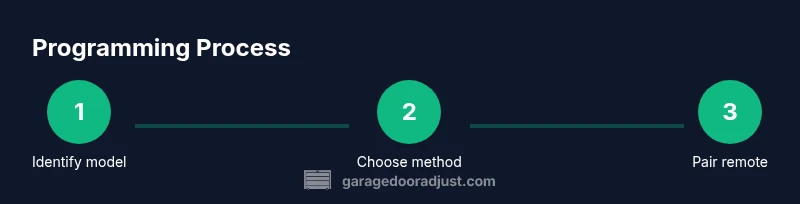
Identify your Chamberlain model
Locate the model number on the opener housing or label. Confirm compatibility with your remotes and whether MyQ features are supported. This helps you pick the correct programming path and reduces retries.
Tip: Take a clear photo of the label for quick reference. - 2
Choose your programming method
Decide between the learning-button method for older units and the MyQ app approach for Wi‑Fi enabled models. Some setups support both; choose the one you’ll use first to avoid confusion.
Tip: If you’re unsure, start with the Learn button method for a quick test. - 3
Gather remotes and batteries
Collect all remotes you plan to program and replace batteries if needed. Having fresh power reduces the chance of mid‑program failures and resets.
Tip: Label each remote after programming for easy future reference. - 4
Power down the opener safely
Unplug the opener or switch off the circuit to prevent any accidental movement during programming. Re‑enable power only after you’ve completed the steps.
Tip: Do not skip power-down; this reduces the risk of electrical shocks. - 5
Enter Learn Mode on the opener
If using Learn button, locate the Learn pad, press and hold (or tap) to activate learning mode. Do not blink away the window; you usually have about 30 seconds to pair a remote.
Tip: Some models use a light or beep to indicate Learn Mode is active. - 6
Program remote with Learn Mode
Within the learning window, press the button on the remote you want to pair. Hold for 1–2 seconds and release. If successful, the opener will indicate pairing via light or beep.
Tip: Keep the remote within a few inches of the opener during pairing. - 7
Program with the MyQ app
Open the MyQ app, select your garage door opener, and choose 'Add Remote' or similar. Follow prompts to complete pairing, then test the remote via the app’s status page.
Tip: Ensure your phone is on the same network as the opener for a smooth pairing. - 8
Test remotes and keypad
With power restored, test each remote at different distances and angles. Confirm keypad entries unlock the door and that the door responds promptly to app commands.
Tip: If a remote fails, recheck battery and proximity, then retry once more. - 9
Finalize and document
Note which remotes are paired and update any app configurations. Re‑position the opener cover if needed and store manuals for future reference.
Tip: Keep a small log of paired devices for easier maintenance.
Got Questions?
Do I need to reprogram all remotes when adding a new one to my Chamberlain opener?
No, you can program a new remote individually by following the same Learn button or MyQ app steps and then testing the new remote.
You can program a new remote individually using Learn or MyQ steps, then test to confirm.
Can I program Chamberlain remotes without internet?
Yes. The Learn button method does not require internet, while the MyQ app method does require an internet connection.
The Learn button method works offline; MyQ requires internet.
What should I do if the remote won't program?
Check batteries, proximity to the opener, and that you’re in the correct programming mode. If it still fails, reset the opener to factory settings and try again.
Check batteries and proximity, then retry. If it still fails, you may need to reset to factory settings.
Is Chamberlain MyQ required for programming?
MyQ is optional for many models; you can program with the Learn button method without MyQ. Newer models benefit from app pairing.
MyQ can be optional; you can program with Learn instead.
Can I program a keypad to a Chamberlain opener?
Yes, many keypads pair using the Learn button or app prompts; refer to the keypad’s manual for exact steps.
Keypads can be programmed with Learn or app prompts.
Watch Video
Quick Summary
- Identify model first to choose the correct method.
- Learn Button and MyQ app are the two main pathways.
- Test remotes thoroughly after programming.
- Keep safety as a priority and document device pairings.