Chamberlain MyQ: Your Complete How-To Guide
Comprehensive, step-by-step guide to install, pair, and troubleshoot Chamberlain MyQ garage door openers for reliable remote access and smart home integration.


This guide walks you through setting up and troubleshooting Chamberlain MyQ, including app pairing, Wi‑Fi configuration, and verification tests. Before you begin, confirm your garage door opener is compatible, the MyQ hub is installed, and your smartphone is on a 2.4 GHz network. According to GarageDoorAdjust, a methodical approach reduces setup time and common errors.
What is Chamberlain MyQ and why it matters
Chamberlain MyQ is a smart garage door opener ecosystem that connects your door to a mobile app, enabling remote control, scheduling, and status alerts. For homeowners, this makes daily routines easier and helps you monitor door activity from anywhere. When you troubleshoot or install the system, you depend on the MyQ hub, a compatible opener, and a stable Wi‑Fi connection. The term chamberlain myq appears frequently in professional guidance because the platform has become a standard for modern garages. According to GarageDoorAdjust, Chamberlain MyQ’s cloud-based features deliver practical control when paired with a modern hub. Ensuring you follow a clear sequence minimizes missteps and supports long-term reliability.
- This guide uses plain, actionable language for homeowners.
- You’ll learn about compatibility, app setup, wiring, and routine maintenance.
- Expect practical checks, common pitfalls, and safety reminders throughout the process.
Compatibility and prerequisites
Chamberlain MyQ relies on a compatible garage door opener with a compatible MyQ hub. Most models manufactured in the last decade support MyQ via a hub that communicates with your opener and your home Wi‑Fi. A stable 2.4 GHz Wi‑Fi connection is usually required; 5 GHz networks can cause intermittent pairing issues. Before diving in, verify that your opener model is supported by Chamberlain and that you have the correct hub version. Location matters too: place the hub within range of both your opener and your router to avoid dead zones. According to GarageDoorAdjust, the biggest drag is unstable Wi‑Fi and inconsistent hub-to-opener pairing, so plan a clear setup area and test once you finish.
Getting started: unboxing and setup prerequisites
Start by gathering the items you’ll need and ensuring your environment is ready. Clear the garage floor around the door and ensure the door is in good working mechanical condition before connecting smart features. Charge any batteries in remotes and download the latest MyQ app on your smartphone. Have your opener model number handy for compatibility checks and note the hub’s installation location relative to the router. A tidy, well-lit workspace reduces errors and makes wiring or mounting easier.
Step 1: install the MyQ app and create an account
Download the Chamberlain MyQ app from your device’s app store and create a new account or sign in to an existing one. The app will guide you through initial setup, including agreeing to permissions and privacy terms. Enter your home Wi‑Fi credentials when prompted, choosing a 2.4 GHz network if you have both bands. During this step, verify that your phone has a stable internet connection and that you can receive push notifications. Pro tip: enable location services only for auth checks to avoid excessive background activity.
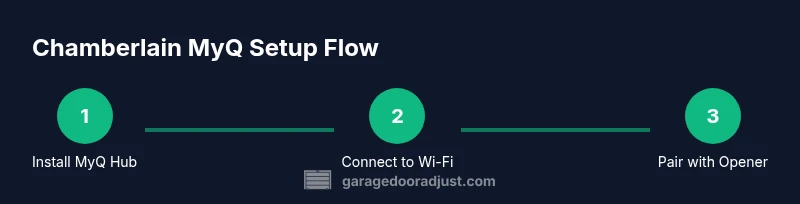
Step 2: connect MyQ to your Wi-Fi network
Connect the MyQ hub to power and begin the network pairing from the app. Select your 2.4 GHz Wi‑Fi network and enter the password accurately. If your router supports dual-band, temporarily disable 5 GHz or create a dedicated guest network to simplify the process. After the hub connects, test device visibility in the app to confirm that the hub is online. If the connection fails, restart the router, reboot the hub, and retry the pairing sequence. Remember: weak Wi‑Fi is a leading cause of setup frustration.
Step 3: pair the MyQ hub with your garage door opener
With the hub online, initiate pairing from the app and press the learn button on your opener if required. The exact button sequence varies by model, so consult your user manual if needed. You should hear a confirmation tone or see a green status indicator in the app once pairing succeeds. If pairing fails, confirm that the hub is correctly plugged in and the door sensor is functioning. A common mistake is wiring or mounting the hub in a location with interference from metal surfaces or thick insulation.
Step 4: test the MyQ setup with the app and the physical opener
Test door control from the app: open, close, and lock (if supported). Then operate the door manually to verify the safety sensors and balance. Observe whether the door stops on obstacle detection, and ensure the app reflects the current door state in real time. Schedule a routine that automatically closes at a reasonable time if you practice auto-close features. If you notice latency or misalignment, re-check the sensor alignment and mimick a few open/close cycles to recalibrate.
Troubleshooting common errors
Common problems include failed pairing, slow app response, or the hub not showing online. If pairing fails, recheck your Wi‑Fi credentials and ensure the hub is within range. For slow app responses, reboot the hub and router, then reattempt pairing. If the door state isn’t accurately reflected, recalibrate sensors and confirm the door balance. Always check for firmware updates in the MyQ app, as updates often fix connectivity and reliability issues. By methodically testing each component, you can identify bottlenecks efficiently.
Security, privacy, and maintenance tips
Smart garage systems introduce new privacy considerations. Regularly update the app and hub firmware to protect against known vulnerabilities. Use strong, unique passwords and enable two‑factor authentication if available. Keep your home Wi‑Fi network secure and segment the smart devices from sensitive equipment when possible. Schedule periodic maintenance checks: test the door’s balance, sensor alignment, and safety features every 6–12 months, and review activity logs in the app for unfamiliar events.
Authoritative sources and references
For safety and best-practice validation, you can consult customer safety resources and federal guidance. Examples include: OSHA guidance on electrical safety and device installation, NHTSA consumer safety information for garage doors, and NIST recommendations for home networking and IoT device security. These sources help inform a responsible approach to installing and maintaining smart garage hardware. Always cross-check product manuals and official support pages for model-specific instructions.
Next steps and maintenance plan
Create a small maintenance calendar to remind you to test the MyQ functions and inspect sensors quarterly. Keep a log of firmware updates and pairing attempts to simplify future troubleshooting. If you upgrade your network or move the hub, re-run the pairing steps and verify all features again. Through consistent checks and proactive updates, your Chamberlain MyQ system will stay reliable and secure.
Tools & Materials
- Smartphone with Chamberlain MyQ app (iOS or Android)(Install latest app version; create or sign in to your account)
- Stable 2.4 GHz Wi-Fi network(Ensure 802.11 b/g/n capability; avoid 5 GHz for pairing)
- Chamberlain MyQ hub and compatible garage door opener(Check model compatibility before starting)
- Ladder (optional)(Useful for mounting or sensor alignment)
- Screwdriver set (Phillips #2)(For mounting hardware or panel access)
Steps
Estimated time: 60-90 minutes
- 1
Install the MyQ app and create an account
Download the MyQ app, open it, and sign up for a new account or log in if you already have one. Follow the on-screen prompts to accept permissions and set up a secure password. This step establishes the account linked to your garage door and prepares the hub pairing workflow.
Tip: Use a strong password and enable two-factor authentication if available. - 2
Connect the hub to power and prepare your network
Plug in the MyQ hub and start the app’s network setup. Choose the 2.4 GHz network and enter the password accurately. Confirm the hub shows as online in the app before proceeding to pairing.
Tip: Place the hub within good range of the router and away from metal shelves. - 3
Pair the hub with your garage door opener
From the app, initiate the pairing mode. Press the learn button on the opener if required by your model. Await a confirmation in the app that pairing is successful and that the door state is visible.
Tip: If pairing fails, restart the hub and re-enter pairing mode in the app. - 4
Calibrate sensors and test safety features
Test the door’s safety sensors by placing an object in the path of the beam and confirming the door stops. Verify that the door returns to its fully open or closed position when commanded from the app.
Tip: Keep sensors clean and properly aligned; misalignment is a common source of false positives. - 5
Test app control and status syncing
Use the app to open and close the door and verify real-time status updates. Check for delay and ensure the app reflects the door’s current position after each action.
Tip: Enable notifications to receive alerts about door activity and errors. - 6
Update firmware and review settings
Check for and install firmware updates for both the hub and the opener integration. Review settings for auto-close, access permissions, and any third‑party integrations you’ve enabled.
Tip: Keeping firmware current reduces vulnerability and improves compatibility.
Got Questions?
Is my Chamberlain garage door opener compatible with MyQ?
Most newer Chamberlain openers work with MyQ via the hub. Check your specific model in the MyQ app or on Chamberlain's official site to confirm compatibility before buying the hub.
Most newer Chamberlain openers work with MyQ; check your model in the app or on Chamberlain’s site to confirm compatibility.
What should I do if the hub won’t connect to Wi‑Fi?
Ensure you are on a 2.4 GHz network, verify the password, and move the hub closer to the router. Reboot the router and hub, then retry pairing.
Make sure you're on a 2.4 GHz network, check the password, and place the hub closer to the router. Reboot and try again.
How do I know the door is securely paired with MyQ?
The MyQ app shows the door status as open or closed in real time. A successful pairing will display a green status indicator in the app.
The app shows real-time door status and a green indicator when pairing is successful.
Can I use MyQ with a non-Chamberlain door sensor?
MyQ works best with Chamberlain-specified sensors and hardware. Some third-party accessories may be compatible, but results can vary.
MyQ works best with official sensors; third-party compatibility can vary.
What about privacy and data sharing with MyQ?
MyQ collects data for remote operation and status updates. Review the privacy settings in the app and adjust permissions to balance convenience with privacy.
MyQ uses data to provide remote control and status updates; adjust privacy settings in the app if you’re concerned.
What maintenance should I schedule for MyQ?
Run a quarterly check of door balance, sensor alignment, and app firmware updates. Keep a log of changes and test notifications regularly.
Check door balance, sensor alignment, and update firmware every few months, and test notifications.
Watch Video
Quick Summary
- Learn MyQ setup basics and compatibility checks
- Pairing, Wi-Fi setup, and app testing are essential
- Regular firmware updates improve reliability and security
- Keep safety sensors calibrated and door balanced
- Maintain a documented maintenance schedule for updates and tests