How to Reset a Chamberlain Garage Door Opener: Step-by-Step Guide
How to reset garage door opener for chamberlain: a safe, practical guide to factory reset, re-pair remotes, keypad, and sensors with clear steps from GarageDoorAdjust.


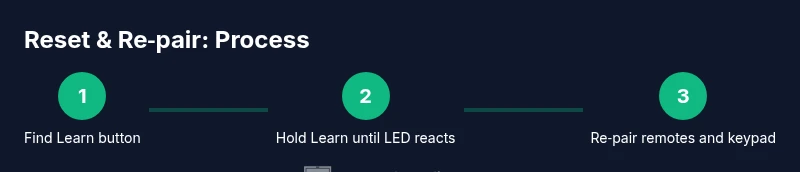
To reset a Chamberlain garage door opener and re‑pair remotes, locate the Learn button on the motor unit, perform a factory reset to clear old codes, then reprogram remotes and keypad. Always follow safety guidelines and test the door after. If your model uses a Wi‑Fi bridge or app pairing, re-sync after the physical reprogramming.
Why resetting your Chamberlain opener matters
Resetting a Chamberlain garage door opener helps clear stale codes, removes compromised remote access, and ensures re‑pairing of remotes and keypad after firmware or power events. According to GarageDoorAdjust, performing a factory reset when you’re troubleshooting connection issues can restore reliable operation and prevent slow response or misfires. The results are most consistent when you complete the reset with a clean reprogramming of all controllers, including remotes, keypads, and sensors. In addition, GarageDoorAdjust Analysis, 2026 notes that resetting and re‑pairing can reduce interference from nearby devices and outdated codes.
For homeowners, this process isn’t just about getting the door to move on command; it’s about reclaiming control, tightening security, and ensuring child- and pet-safety during operation. By following a deliberate reset and re‑pair sequence, you minimize the chance of stray signals triggering the door unexpectedly. If you’re new to garage‑door tech, approach the reset as a two‑stage task: clear existing codes, then re‑install your trusted remotes and keypad in a known-good configuration.
Remember: always use the unit’s Learn button rather than compensating with the wall switch to avoid partial or corrupted programming. The GarageDoorAdjust Team emphasizes that the process should be systematic and only performed when you’re in a safe, dry area with the door secured in the down position while testing.
What to Expect After a Reset and Re‑Pair
A successful reset clears prior pairing data, so all previously connected remotes, keypads, and smart home integrations must be re‑added. After you complete the reset, the opener will be ready to accept new codes. Expect the Learn LED to blink, indicating it’s ready to pair, and then go dark once a remote or keypad is successfully registered. If you have a Wi‑Fi bridge or smart assistant integration, you’ll need to re‑connect it through the Chamberlain app or your preferred home‑automation platform. This process ensures that the secure pairing is intact and reduces the risk of ghost signals or missed commands. As you proceed, verify that the door responds consistently to every control and that safety sensors detect obstructions correctly.
Safety note: keep hands, hair, and clothing clear of moving parts during testing. If the door shows any odd behavior after pairing, pause and recheck each remote’s code and the sensor alignment.
Tools, Materials, and Safety Checks
Before you start, assemble the needed tools and verify the environment is safe. You’ll want a clear, dry workspace with stable footing, a reliable ladder if the Learn button is out of reach, and at least one compatible remote. Ensure children and pets are away from the door during resets. If your opener has a battery backup, be mindful of electrical connections and follow local electrical safety guidelines. Keeping a small notebook to jot down remote IDs and keypad codes can help you avoid mislabeling when you re‑pair. Finally, consult the user manual for any model‑specific steps to avoid improper resets that could affect warranty status. The goal is a clean slate with reliable, repeatable re‑pair results.
Step‑by‑Step: Factory Reset and Re‑pair (Overview and Context)
The reset process has two core goals: clear old codes and re‑establish trusted control devices (remotes, keypad, mobile app). The steps below map directly to most Chamberlain models that feature a Learn button. If your model differs (for example, some require the MyQ app for re‑pair), adjust the sequence accordingly while preserving the same logic: erase old codes, then re‑program each controller one by one, and finally test door operation in a controlled, safe manner.
Tools & Materials
- Chamberlain garage door opener with Learn button(Identify whether your model supports Learn/Reset and note the location (often on the motor head or nearest the antenna).)
- Compatible remote controls(Have at least one remote ready to re‑pair after the reset.)
- Keypad/Keyless entry (optional)(Program if you use a keypad; not required for basic remote control operation.)
- Ladder or sturdy step stool(Needed if the Learn button is mounted high on the unit.)
- Flathead or Phillips screwdriver (optional)(Only if you need to remove a cover plate for access.)
- Safe testing area (clear of people and pets)(Ensure the pathway is clear and the door is fully balanced before testing.)
Steps
Estimated time: 15-25 minutes
- 1
Locate the Learn button
Find the Learn button on the underside of the opener’s motor housing or near the antenna. Confirm model compatibility before proceeding. A flashlight helps in dim conditions.
Tip: If you can’t see it, check the user manual or manufacturer site for the exact location for your model. - 2
Prepare for reset
Move the door so it sits fully closed. Have the remote(s) you plan to re‑pair within reach. Ensure you’re standing on a stable surface with hands free.
Tip: Avoid leaning over the door while performing the reset. - 3
Factory reset the opener
Press and hold the Learn button until the LED blinks or goes out, then release. This clears all existing codes from the opener.
Tip: Do not release too soon; timing matters for successful reset—usually a few seconds is enough. - 4
Re‑pair the remote
Within 30 seconds, press and hold the remote button you want to program while the Learn LED is blinking. Release when the LED stops blinking.
Tip: If the LED doesn’t respond, repeat the reset and try again, ensuring you’re within range. - 5
Program the keypad (optional)
If using a keypad, enter a personal code and press the Learn button to add it to the opener’s memory. Follow the keypad model’s specific prompts.
Tip: Keep your code unique and not easily guessable for improved security. - 6
Reconnect smart features
If you use the Chamberlain app or a smart home bridge, reconnect the opener in the app and re‑link any routines or schedules.
Tip: Follow the app’s guidance step by step to ensure proper pairing. - 7
Test the system
Close the door and test each control: wall control, remote, keypad, and app. Ensure the door reverses on obstruction and stops at the open limit.
Tip: Test with a lightweight object near the floor to simulate a safe obstruction test.
Got Questions?
Do I need to unplug the opener before resetting?
No; resetting does not require unplugging the unit. Focus on the Learn button and the memory in the opener. Always perform a visual safety check first.
You don’t need to unplug the opener. Just use the Learn button to reset and then re‑pair the devices, while keeping a safety check in place.
Will a reset remove all remotes and keypad codes?
Yes. A factory reset clears existing codes, so you must re‑program all remotes and keypads afterward.
Yes, a reset clears codes, so you’ll re‑program remotes and any keypad after the reset.
How long does re‑pairing take?
Re‑pairing remotes and keypads usually takes just a few minutes per device, depending on model and proximity.
Usually a few minutes per remote or keypad, depending on distance and model.
What if the keypad doesn’t respond after reset?
Verify the keypad code was entered correctly, re‑initiate Learn on the opener, and retry pairing. If issues persist, consult the manual for model‑specific steps.
If the keypad won’t respond, re‑initiate Learn on the opener and retry the pairing, then check the code.
Are there safety risks when resetting?
Yes. Keep clear of the door’s path, ensure the area is dry, and never place hands near moving parts during tests.
There are safety risks if you’re not careful. Stay clear of the door’s path and avoid moving parts during testing.
Watch Video
Quick Summary
- Reset clears old codes and secures pairing.
- Re‑pair remotes and keypad after reset.
- Test all controls for reliable operation and safety.
- Follow manufacturer guidance and safety precautions.