How to Use a Chamberlain Garage Door Opener: Step-by-Step Guide
Learn how to safely operate, pair remotes, and maintain your Chamberlain garage door opener with a clear, step-by-step guide, including MyQ app setup and basic troubleshooting for homeowners.


You will learn how to safely operate a Chamberlain garage door opener, pair remotes, and use the MyQ app. This quick guide covers wall controls, safety reverse tests, and basic troubleshooting. By the end, you’ll confidently open and close your door, diagnose common issues, and perform routine maintenance. Follow step-by-step instructions, check safety features, and know when to call a pro.
Understanding Chamberlain garage door opener basics
Chamberlain garage door openers provide motorized operation for sectional doors, combining safety sensors, remote controls, wall controls, and optional MyQ smart connectivity. Most models use a reversible motor that drives a trolley along a track, raising and lowering the door. A safety infrared beam detects obstructions, and if the beam is interrupted, the door stops. The basic workflow is simple: press a button to activate movement, and the door will travel until it reaches a stop. Always ensure the opener is plugged into a working outlet and that the door is balanced so it doesn’t sag or bind. According to GarageDoorAdjust, these openers typically support remote pairing, MyQ app control, and status indicators that help with quick diagnostics.
Core features you’ll use daily
In daily use, you’ll interact with wall controls, remotes, and the MyQ app. The wall button usually stays mounted near the doorway for quick access. Remote controls offer a convenient option to operate from your driveway; keep batteries fresh and avoid placing remotes near heat. MyQ connectivity allows you to monitor door status, schedule automatic closures, and share access with family members. Regular features like safety sensors, force settings, and travel limits help prevent accidents and ensure the door moves smoothly. For most homeowners, understanding these core features reduces the number of service calls and extends the opener’s life. GarageDoorAdjust notes that proper pairing and app setup can significantly improve day-to-day reliability.
Wall controls, remotes, and the MyQ app
Wall controls provide quick, hands-free operation from inside the garage. Remotes let you operate the door from outside the door’s approach path. The MyQ app adds remote monitoring, door status alerts, and scheduling options, so you can close the door automatically after leaving. When using these tools, keep devices up to date and ensure the opener’s firmware is current. If you encounter issues, verify that your devices are connected to the same network and that you’re signed into the correct account.
Safety checks and routine maintenance
Regular safety checks prevent accidents and extend the life of your opener. Test the safety reversing sensor by placing a thin object in the door’s path; the door should reverse on contact. Lubricate moving parts per the manufacturer’s guidelines, and keep tracks clean and free of debris. Inspect the rollers and springs for wear, and address any unusual sounds or resistance promptly. Consistent maintenance reduces the likelihood of unexpected failures and keeps the system operating smoothly.
Troubleshooting common issues when the opener won’t respond
If the opener doesn’t respond to a wall control or remote, start with basic power checks: confirm the outlet is live, the circuit isn’t tripped, and the unit is plugged in. Check the safety sensors for misalignment or obstruction and ensure the antenna on the opener is unobstructed. For MyQ connectivity issues, verify Wi-Fi strength, re-link the account if necessary, and update firmware. If the door operates manually but won’t respond electronically, inspect the wiring at the control panel and consult the manual for reset procedures.
Tools & Materials
- Screwdrivers (Phillips and flathead)(Include assorted sizes for panel and adjustment screws)
- Pliers(For grip and connector adjustments)
- Nut driver set(Helpful for bracket screws)
- Voltage tester(Verify outlet power during troubleshooting)
- Ladder(Stable, rated for your height)
- Safety glasses(Eye protection during adjustments)
- Owner's manual(Model-specific instructions and diagrams)
- Smartphone with MyQ app(For app setup and remote control)
Steps
Estimated time: 15-30 minutes
- 1
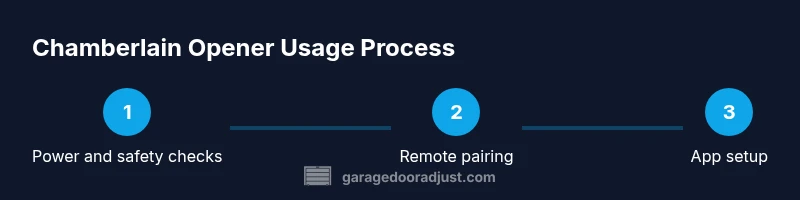
Check power and path
Verify the opener is plugged in and that the outlet has power. Inspect the door’s path for obstacles and ensure the tracks are clear. This prevents false starts and damage to components.
Tip: Test the outlet with a small lamp to confirm power before proceeding. - 2
Test wall switch and safety sensor
Operate the wall control to ensure it drives the door up and down smoothly. Place a light object near the door’s path to test safety reversal; the door should reverse without applying excessive resistance.
Tip: If the door doesn’t reverse, re-check sensor alignment and clean the photo eyes. - 3
Test and replace remote batteries
Use a remote to operate the door from a distance and confirm responsiveness. If unresponsive, replace the batteries and re-test. Keep a backup remote in a known location.
Tip: Label remotes and check battery shelves to avoid dead batteries at critical moments. - 4
Pair remotes with the opener
Enter pairing mode on the opener and press the remote button until you hear two beeps or a confirmation light. Repeat for additional remotes. This ensures all remotes work reliably with the same opener.
Tip: Avoid pairing unfamiliar remotes to prevent conflicts. - 5
Set up MyQ app and wifi
Download/open the MyQ app and follow the on-screen prompts to add your garage door opener. Connect to your home Wi-Fi network and sign in to access remote control and status monitoring.
Tip: Use a strong Wi-Fi signal for dependable app connectivity. - 6
Run a final safety test and routine maintenance
Perform a final safety reverse test and inspect all hardware. Lubricate moving parts lightly and re-check track alignment. Record any anomalies for future reference.
Tip: Document maintenance dates to build a simple upkeep schedule.
Got Questions?
How do I pair a Chamberlain remote with the opener?
Enter the opener’s pairing mode (usually by pressing and holding a learn button until the light blinks) and then press the remote button once. The opener confirms pairing with a light or beep. Repeat for additional remotes.
Enter pairing mode on the opener and press the remote button until it confirms; repeat for other remotes.
How do I set up the MyQ app for my Chamberlain opener?
Download the MyQ app, create or sign in to your account, and follow the prompts to add your garage door opener. Connect to your home Wi‑Fi and enable notifications for status updates.
Install MyQ, add your opener, connect to Wi‑Fi, and enable door status alerts.
Why won’t the door move when I press the wall switch?
Check power to the unit, confirm the door is not blocked, and verify the safety sensors are aligned. If the motor hums but doesn’t move, check the drive belt or chain for tension and refer to the manual for reset steps.
Power and path clear? Sensors aligned? If the motor hums but won’t move, check drive tension and reset according to the manual.
How can I test the safety reverse feature?
Place a light barrier (e.g., a piece of cardboard) in the door path and operate the door. The door should reverse on contact. If not, adjust the sensor alignment and re-test.
Put something in the door path and run the door; it should reverse on contact. If not, adjust the sensors.
Can I program multiple remotes for the same opener?
Yes. Pair each remote individually using the same pairing process. Avoid mixing remotes from different brands to prevent interference.
Yes, pair each remote one by one using the same steps; avoid mixing brands.
Watch Video
Quick Summary
- Understand core Chamberlain features and how they help daily use
- Master wall controls, remotes, and MyQ app basics
- Perform regular safety checks and simple maintenance
- Troubleshoot common failures with clear, safe steps