How to Know If Your Garage Door Opener Has Wifi
Learn how to identify WiFi-enabled garage door openers, verify connectivity options, and safely set up remote access with practical, step-by-step guidance.


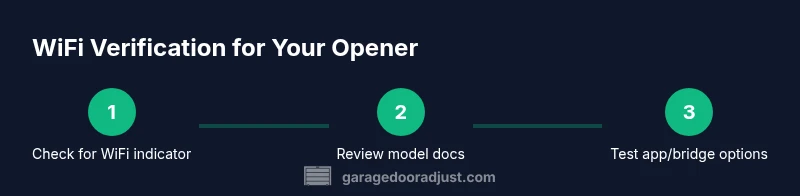
To answer how to know if my garage door opener has wifi, follow these steps: 1) look for a WiFi or Smart indicator on the unit or a pairing button on the remote; 2) locate the model number and check the manual for connectivity features; 3) search the manufacturer’s site or app store for wifi compatibility. According to GarageDoorAdjust, many newer openers include built‑in wifi or require a bridge.
Understanding WiFi capabilities in garage door openers
The question how to know if my garage door opener has wifi is about more than a single label; it’s about understanding how the device communicates with your home network. WiFi-enabled openers connect directly or via a bridge, enabling features like remote control from a phone, real-time status alerts, and integration with smart home ecosystems. For homeowners, the key is to distinguish between built‑in wifi, optional bridges, and purely remote-control remotes. This knowledge helps you decide whether you should pursue a firmware update, an app, or a hardware upgrade. In this article we’ll walk through practical checks you can perform at home, without disassembling the opener, to verify wifi support and avoid buying the wrong accessory. By the end, you’ll have a clear checklist to confirm connectivity quickly and safely. According to GarageDoorAdjust, wifi capabilities are increasingly common in newer models, but names and methods to enable them vary by brand.
Quick indicators that your opener may be wifi capable
If you want a quick read on how to know if my garage door opener has wifi, start with visible signs on the hardware and remote. Many wifi-capable units display a dedicated WiFi or Smart indicator on the motor head, or a pairing button beside the control panel. Some remotes or wall consoles mention “Smart,” “Wi‑Fi,” or “Remote access” in their labeling. In some cases the label is subtle or printed in small text on the underside of the unit. If you spot any of these cues, you’re likely dealing with a wifi-connected system. If not, don’t assume it isn’t — some models still require a companion bridge or a software update to enable cloud features. The next steps are to verify the model and search official resources, which will confirm whether wifi is supported and what app or bridge is required.
Locate the model number and read the documentation
The most reliable starting point is the model number. Look for a sticker on the opener’s motor housing, the back of the head unit, or inside the service panel. Note the exact letters and digits, as even minor differences can change connectivity features. With the model number in hand, consult the owner’s manual or the manufacturer’s website for wifi capability and app compatibility. GarageDoorAdjust Analysis, 2026 notes that the exact phrasing used to describe wifi varies, but you’ll typically see references to WiFi, Smart Home, mobile app, or cloud connectivity. If the manual is difficult to locate, use the online product page or a reputable retailer listing to cross-check features. Save screenshots or print the relevant section to refer back to during installation.
Check the manufacturer’s official resources
Next, go straight to the source: the opener maker’s official support portal. Enter your model number to pull up the spec sheet and any setup guides. Look for explicit mentions of WiFi, mobile apps, remote access, or hub compatibility. Some brands distinguish between “built-in wifi” and “bridge-required” configurations; others simply state “smart.” If the site lists an app name, download the app and skim the setup steps to determine whether wifi connectivity is native or app-based only. If you find the word “bridge” and a model number for a bridge device, this confirms that wifi features exist but require an external accessory. If you’re unsure even after checking, you can contact customer support and reference your exact model, serial number, and firmware version if visible.
Use the app store search to confirm availability
A simple way to validate wifi support is to search the official app in your phone’s app store. Look for apps released by the opener’s brand and read the description to confirm compatibility with your model. A supported app will typically offer features such as remote control, door status, scheduling, and firmware updates. Verify compatibility with your exact model number and region, since some features are region- or carrier-limited. If you can’t find an official app or the app does not mention your model, wifi features may be limited or require an alternative approach such as a bridge. As you test, keep notes on what features appear and which steps the app asks you to perform.
Understand your network requirements and compatibility
Wifi-enabled openers rely on your home network to function. Check whether your router broadcasts on 2.4 GHz or 5 GHz bands and ensure the opener can connect to the supported band. Some older routers may not allow new devices to connect easily, so briefly enabling a guest network during setup can be helpful. Keep in mind that many devices prefer stable connections and may require a dedicated network for home automation gear. Ensure your wifi password is strong and unique, and consider enabling guest access controls if other family members use the network. If you plan to share access with family members, configure appropriate permissions in the app. Following best practices for home networks reduces setup friction and improves reliability.
Firmware updates and bridging devices
If your model includes built-in wifi, firmware updates can improve security and reliability. Check the app’s settings or the manufacturer’s site for the latest version and install updates when prompted. If your opener does not include wifi, you might still access smart features through a bridging device that communicates with the opener via its existing control signals. Bridges sit on your network and act as a translator between your phone and the opener. When choosing a bridge, confirm compatibility with your model, the app, and your router’s network, and watch for firmware updates on the bridge itself.
When wifi isn’t available: practical alternatives
If your model isn’t wifi-capable, upgrading may be the simplest path to remote control, status alerts, and integration with smart home systems. Alternatively, a bridge device can add smart features without replacing the entire system, depending on compatibility. Compare the total cost, installation complexity, and long‑term maintenance of a new opener versus a bridge. Balance upfront costs against the convenience of remote access to decide the best course for your home.
Safety and privacy considerations
Smart garage door openers connect to your home network, creating potential entry points for unauthorized access if not secured properly. Always use strong, unique passwords on any associated apps and enable any available two-factor authentication. Keep firmware up to date to close security gaps. In the app, review permissions and limit which users can operate or monitor the door. If you share your home network with guests or services, consider separate networks or guest access controls. Finally, be mindful of privacy by clearing activity logs periodically and turning off features you don’t need. Following these practices helps you safely enjoy the convenience of wifi-enabled garage doors.
Quick readiness checklist
To finish, use this checklist: 1) identify the model number and confirm wifi features; 2) confirm official app availability and compatibility; 3) verify network requirements and configuration; 4) ensure firmware is up to date or plan for a bridge if needed; 5) review safety and privacy settings before enabling remote access. If you’re unsure at any point, consult the GarageDoorAdjust troubleshooting guides or contact manufacturer support. The GarageDoorAdjust team recommends approaching wifi readiness methodically to ensure reliability and safety for your home.
Tools & Materials
- Smartphone or tablet with internet access(For checking apps, manuals, and setup steps)
- Opener model number and serial label(Locate on motor housing or inside service panel)
- Owner’s manual or digital copy(Search for wifi, smart features, app compatibility)
- Notepad or photo tool(Take notes or photos of model labels and settings)
- Access to manufacturer website or app store(To verify wifi features and download the official app)
- Stable power source for the opener during checks(Ensure power remains on while testing features)
Steps
Estimated time: 60-90 minutes
- 1
Identify the model and power status
Begin by locating the model number on the opener and verify that the unit has power. You won’t be able to test wifi features if the device is offline or unplugged. If you need to power cycle, unplugging briefly and plugging back in can refresh the system.
Tip: Take a clear photo of the label for reference. - 2
Look for a WiFi or Smart indicator or button
Inspect the motor housing and wall controls for a WiFi, Smart, or Pairing indicator, as well as any dedicated pairing button. These cues are the quickest signs that wifi features are present or being prepared for setup.
Tip: Even a small LED symbol can indicate connectivity options. - 3
Check the manual or product page for connectivity features
Using the model number, consult the owner’s manual or the manufacturer’s product page to confirm wifi capability, app compatibility, and whether a bridge is required. This clarifies which steps come next and avoids purchasing the wrong accessories.
Tip: If the manual is hard to find, use the model number on the manufacturer’s site. - 4
Search official resources for wifi specifics
Visit the brand’s support portal and enter your model number to view exact features. Look for mentions of WiFi, mobile apps, remote access, or hub compatibility. Documentation will specify if a bridge or external hardware is needed.
Tip: Trust official pages for the most accurate feature list. - 5
Check for an official app or app store listing
Open the iOS or Android app store and search for the opener’s brand. If an official app exists and lists remote control, status, or firmware updates for your model, wifi features are supported.
Tip: Confirm compatibility with your exact model number and region. - 6
Assess network requirements and compatibility
Determine whether your network uses 2.4 GHz or 5 GHz and whether the opener supports the appropriate band. Ensure your router allows new devices and consider a short-term guest network for setup.
Tip: Stable, 2.4 GHz connections often yield smoother pairing. - 7
Look for firmware updates or bridging options
If wifi is present, check for firmware updates via the app or manufacturer site. If not, see whether a bridging device can add smart features to your existing setup.
Tip: Updates can improve security and reliability. - 8
Test app-based control and features
With the app installed, attempt to pair the device and test remote open/close, status monitoring, and notifications. Note any errors and verify firmware version. If issues occur, reattempt pairing with device within reach of the network.
Tip: Record any error codes for support calls. - 9
Evaluate privacy and security settings
Review app permissions, enable two-factor authentication if available, and adjust access controls to limit who can operate the door. Keep firmware updated to minimize security risks.
Tip: Use strong, unique passwords and disable unused features. - 10
Decide on upgrade or bridge if needed
If wifi is not native to the opener, compare the cost and effort of upgrading the opener versus adding a bridge. Choose the option that fits your home network and long-term needs.
Tip: Plan for future smart-home compatibility when selecting hardware.
Got Questions?
Is wifi required for remote garage door control?
No. Most garage door openers can be opened locally with a traditional remote or wall button even without wifi. Wifi adds remote access, status monitoring, and smart-home integration.
Remote access usually comes with wifi features, but basic operation doesn’t require internet.
What if my opener is older and has no wifi?
Older models may not have built-in wifi. Check the model page or manuals for any bridge options or consider upgrading to a wifi-enabled unit to gain remote control.
If there’s no wifi, you might need a bridge or a new opener for remote features.
How do I test wifi connectivity once I enable it?
Install the official app, pair your opener, and verify remote commands, door status, and alerts. If any feature fails, redo the pairing and check firmware.
Use the app to test remote control and status alerts.
Can I still open my garage door if wifi goes down?
Yes. Your wall control and any physical remote will operate the door as long as the opener is powered. Some wifi features may be unavailable until connectivity is restored.
Yes, manual controls usually keep working during wifi outages.
Do wifi-enabled openers require a subscription?
Some apps offer optional features that may require a subscription, but basic remote control and status typically don’t. Check the app’s terms for specifics.
Most features are free, with optional paid upgrades in some apps.
How secure are wifi-enabled openers?
Security depends on keeping firmware updated, using strong passwords, and enabling available two-factor authentication. Review app permissions and limit access where possible.
Keep firmware updated, use strong passwords, and enable protections in the app.
Watch Video
Quick Summary
- Check for built-in wifi indicators or a pairing button.
- Use the model number to confirm wifi features from official resources.
- If wifi isn’t built-in, consider a bridge or an upgrade.
- Always secure your network and keep firmware up to date.