Can You Get a Garage Door Opener on Your Phone? A Practical Guide
Learn how to control your garage door from a smartphone with a compatible opener and hub. This step-by-step guide covers compatibility, setup, security, and troubleshooting for homeowners seeking reliable remote access.


Yes. You can control a garage door opener from your smartphone by pairing a compatible opener with a smart hub or built-in Wi‑Fi module and using the official mobile app. You’ll need a supported opener, a stable Wi‑Fi network, and a smartphone. This guide shows how to set up and secure remote operation.
How smartphone control works
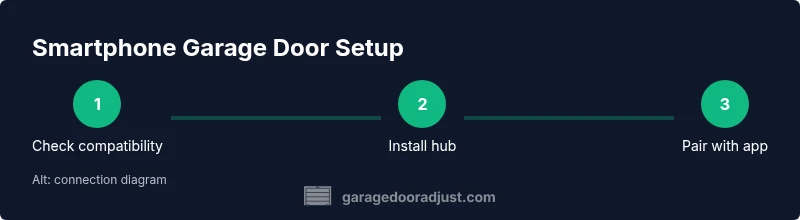
Smartphone control of a garage door opener relies on a small bridge device (a hub) or a built-in network module in the opener, plus a mobile app. The hub connects to your home Wi‑Fi and talks to the opener using a secure protocol. When you tap a button in the app, the hub relays the command to the opener, which then operates the motor. According to GarageDoorAdjust, modern smart control is designed to be intuitive for homeowners while maintaining safety features like activity logs and access management. The underlying architecture can be either local (app talks directly to the hub) or cloud-based (the app communicates via the internet to the hub). Understanding which model you have is the first step toward reliable mobile operation.
Below are the core concepts you should know before you dive in:
Compatibility matters: choosing the right system
Mobile control isn’t universal. Some openers have built‑in Wi‑Fi and a dedicated app, while others require a separate hub module that plugs into the opener’s control board. Common ecosystems include brands like Chamberlain/LiftMaster with the MyQ platform, and third‑party bridges that integrate with popular assistants. The key questions to answer are: does your opener model support an app, will a hub integrate with its safety sensor, and is your home Wi‑Fi compatible with the hub’s required network standards? Most newer models support iOS and Android, but you’ll want to verify model numbers and firmware requirements before purchasing a hub or updating the opener firmware.
To reduce confusion, keep a simple checklist handy:
- Opener model and year of manufacture
- Your smartphone OS version
- Home Wi‑Fi network capability (2.4 GHz typically recommended, 5 GHz if supported by the hub)
- The official app that matches your opener brand
- Any required hub or bridge accessory and its placement near the opener
If you’re unsure, start with the manufacturer’s compatibility page and read user manuals for model-specific steps.
Step-by-step setup overview: what you’ll typically do
Most installations follow a similar flow, whether you’re upgrading an older opener or configuring a new system:
- Install or confirm a compatible hub or built-in module
- Connect the hub to your 2.4 GHz Wi‑Fi network and verify internet access
- Install the corresponding mobile app and create an account
- Add the opener within the app by following device pairing prompts
- Test basic locking/unlocking and enable notifications
- Review and configure security settings (two‑factor, access codes, and shared access)
This section outlines the high‑level steps; the STEP-BY-STEP block provides precise actions with times and tips.
Good practice tip: write down the opener’s serial/model number before starting; it speeds up the pairing process and prevents misconfiguration.
Safety, security, and privacy considerations
Smartphone control adds convenience, but it also introduces new risk vectors: weak passcodes, compromised devices, or insecure networks can grant unwanted access. The safest approach is to enable multi‑factor authentication on your app account, keep firmware updated, and use strong, unique passwords for your home network. Review app permissions and disable access when a phone is lost or no longer in use. If your hub supports activity logs, enable them and periodically audit any unfamiliar events. Finally, consider setting geofencing policies or time‑based access limits to minimize exposure during travel or extended absences.
Troubleshooting common issues during setup and daily use
If pairing stalls or control doesn’t respond:
- Verify both the hub and opener are on compatible firmware versions
- Confirm the phone and hub are on the same network during setup (and test again after switching networks)
- Reboot the router, hub, or opener as a last resort
- Check for app updates and re‑pair if necessary
- Ensure the control features aren’t blocked by a guest network or firewall rules These steps address the majority of connection or control problems homeowners encounter.
Practical tips for daily use and long-term maintenance
When smartphone control works reliably, you can enjoy features like push alerts for door activity, integration with smart home routines, and remote monitoring when you’re away. Regular maintenance includes updating the opener firmware, checking safety sensors for obstructions, and testing the mechanicals monthly. If you travel, consider temporarily disabling remote access or using one‑time access codes for guests. By staying on top of updates and reviewing access logs, you maintain both convenience and security.
Tools & Materials
- Smartphone with latest OS (iOS or Android)(Ensure you can install the manufacturer’s app and receive push notifications.)
- Compatible smart hub or built-in Wi‑Fi module(Verify model compatibility with your opener and the app ecosystem.)
- Opener model with app compatibility(Have the exact model number handy in case you need firmware updates.)
- Stable 2.4 GHz Wi‑Fi network (and allowance for 5 GHz if supported)(Some hubs don’t work on guest networks; use a primary home network during setup.)
- Instructions/manual or model documentation(Helpful for locating pairing steps and port requirements.)
Steps
Estimated time: 45-75 minutes
- 1
Check compatibility
Verify your opener model supports app or hub control and note the exact model number. This ensures you don’t buy the wrong hub or miss firmware requirements.
Tip: Consult the manufacturer’s compatibility page and keep model numbers handy. - 2
Install or confirm hub setup
Install the hub near the opener and power it as directed. Confirm it connects to your home Wi‑Fi network and shows a stable status in the hub’s companion app.
Tip: Place the hub within reliable range of both the opener and your router to prevent dropouts. - 3
Install the mobile app and create an account
Download the official app, create a secure account, and enable any available security features such as two‑factor authentication.
Tip: Use a strong, unique password and avoid exiting the app after setup until you’ve tested access. - 4
Pair the opener with the app
Follow in‑app prompts to add the opener. This typically involves pressing a pairing button on the hub and selecting the device from a list.
Tip: If you’re asked for the opener’s serial/model number, have it ready to paste into the app. - 5
Test basic operations
Use the app to open and close the door while you stand by the opener to verify the action occurs smoothly.
Tip: Check sensor alignment and ensure the door reverses if obstructed during the test. - 6
Configure notifications and access
Set up push notifications for open/close events and create user accounts or guest access as needed.
Tip: Enable event history so you can review activity later. - 7
Enhance security
Enable two‑factor authentication, review connected devices, and disable remote access for devices no longer in use.
Tip: Rotate passwords periodically and audit access daily during initial use. - 8
Finalize and test again
Run a second full test, including remote access over cellular data if supported, to ensure reliability.
Tip: Keep a backup PIN or temporary access method in case your phone is unavailable.
Got Questions?
Do I need to replace my current garage door opener to use phone control?
Not always. Some openers include built‑in Wi‑Fi or can be upgraded with a compatible hub. Check your model’s documentation for supported apps and hubs.
Often you can upgrade with a hub; check your opener’s model to confirm compatibility.
Is smartphone control safe for a garage door?
Yes, when you enable secure authentication, keep devices updated, and monitor access logs. Use two‑factor authentication and disable remote access when not needed.
Yes, with proper security features enabled and firmware kept up to date.
Can I control my garage door with voice assistants?
Many systems work with Alexa or Google Assistant through the official app. You may need additional linking steps or a compatible hub.
Yes, often via the app’s integration with your preferred assistant.
What should I do if the app won’t connect?
Verify Wi‑Fi connectivity, re‑enter account credentials, reboot the router and hub, and re‑pair the opener. Consult the manufacturer’s support if issues persist.
Try re‑pairing and rebooting devices; check compatibility and firmware.
What happens if the internet is down?
If the system supports local control, you can still operate the door manually or via a local network. Cloud‑dependent setups may require cellular fallback or offline operation.
Local control may still work; cloud control could be unavailable during outages.
How do I remove a user from access?
Go to the app’s user management section and revoke access for the user. It’s good practice to review permissions periodically.
Revoke access in the app’s user management area.
Watch Video
Quick Summary
- Confirm compatibility before buying hardware.
- Enable strong authentication and monitor activity.
- Test operations thoroughly after setup.
- Keep firmware up to date for security and stability.
- Leverage smart home features without compromising safety.