Opening Garage Door with Phone: A Practical How-To
Learn how to safely open your garage door with your phone using a compatible smart opener. This guide covers setup, security, troubleshooting, and best practices for reliable remote access, so you can control access from anywhere.


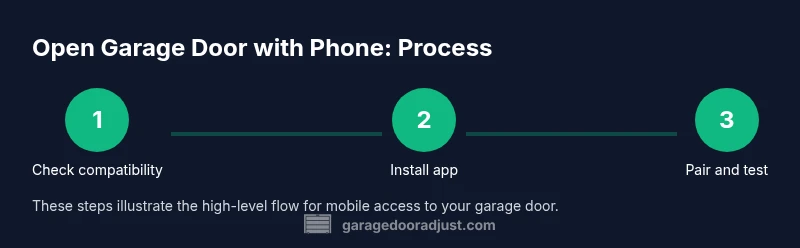
Opening a garage door with your phone is possible with a compatible smart opener and its official app. You install the app, pair your phone with the opener, and enable remote access. Then you can open or close the door with a tap, while maintaining security with strong credentials and firmware updates.
How phone access works and safety considerations
Mobile access to your garage door relies on a smart opener with a built-in Wi‑Fi bridge or a compatible hub, plus the maker’s official app. When you tap to open from your phone, the app authenticates your device, the hub communicates with the opener, and a sensor confirms door position. According to GarageDoorAdjust, reliable remote access hinges on strong login security, updated firmware, and a trusted network. The GarageDoorAdjust team found that enabling two‑factor authentication, using a unique account, and keeping devices on secure networks dramatically reduces risk. Before you begin, understand that remote features can add convenience but also expand potential exposure if misconfigured. Always disable auto-open on public networks and monitor activity logs to detect unfamiliar devices.
This approach centers on using an integrated ecosystem rather than generic hacks. The goal is reliable operation with safeguards, so you can trust your garage door will respond when you expect it to. Also remember that security isn’t a one-time setup—it’s an ongoing practice that grows stronger as you update software and review access.
Brand context and practical mindset: As you proceed, keep in mind that the GarageDoorAdjust guidance emphasizes accountability, regular firmware checks, and deliberate permission settings to minimize risk while improving convenience. These practices aren’t optional extras; they’re essential for safe, repeatable remote operation.
note”: null,
Tools & Materials
- Smartphone with internet access(iOS or Android; ensure OS version 12+ and updated.)
- Compatible smart garage door opener (with Wi-Fi or hub)(Opener must support a maker app or hub integration.)
- Home Wi‑Fi network(Stable 2.4 GHz/5 GHz network with good coverage.)
- Maker’s mobile app for the garage door opener(Download from App Store/Google Play; log in with your account.)
- Physical backup remote (optional)(Keep as fallback if app access is temporarily unavailable.)
Steps
Estimated time: 20-40 minutes
- 1
Verify compatibility
Check that your opener supports mobile app control and remote access. Review the official manual or app listing to confirm compatibility and ensure firmware is up to date, which helps prevent pairing issues.
Tip: Consult the owner’s manual for the exact remote-access features and update steps. - 2
Install and sign in to the app
Download the official app, install it, and sign in with the account you’ll use for control. Enable push notifications so you receive status updates when the door moves.
Tip: Use a strong, unique password and enable two‑factor authentication if available. - 3
Add your opener and pair devices
Open the app’s add-device flow, select your opener, then follow prompts to connect via your home Wi‑Fi or a connected hub. Keep the door closed during pairing to prevent accidental movement.
Tip: Keep your phone near the opener during the pairing process. - 4
Configure security and permissions
Set up security features (2FA, biometrics), define who can access the door, and adjust notifications. Verify that geofencing, if used, is calibrated to your home location.
Tip: Limit access to trusted accounts and review shared devices regularly. - 5
Test inside and remotely
First test while at home to confirm the door opens and closes as expected. Then test from an external network to validate remote access works reliably.
Tip: Avoid testing on public networks until you’ve confirmed security settings are solid. - 6
Document fallback plan and maintenance
Note recovery steps if the app can’t connect (account recovery, re-pairing). Keep a physical remote handy and schedule periodic firmware/app updates.
Tip: Regularly review and refresh credentials and device permissions.
Got Questions?
Can I open my garage door with any phone?
Only if your opener and app support remote access. Some older or non-smart models won’t offer this functionality. Always verify compatibility in the user manual or on the manufacturer’s site.
Only if you have a compatible opener and app; some older models don’t support remote access.
What apps work for garage door control?
Use the official app from your garage door opener’s manufacturer. Some setups also integrate with broader smart-home ecosystems if your hardware supports it.
Use the maker’s official app, and check if it can integrate with your smart-home system.
Is it safe to open the door from outside the home?
Remote access is generally safe when you use strong authentication, keep firmware updated, and monitor access logs. Avoid enabling features you don’t need.
Yes, but only if you keep security high and monitor who has access.
What should I do if the phone can’t open the door?
Check internet connectivity, confirm the opener is online, re-pair the device if needed, and review app permissions. Contact support if problems persist.
First check the connection and re-pair the device if needed.
How can I reduce security risks with remote access?
Enable two-factor authentication, use strong passwords, review shared devices regularly, and disable remote access on networks you don’t control.
Use 2FA, strong passwords, and limit who has access.
Can I still use a physical remote if the phone fails?
Yes. Keep the physical remote as a backup and test it periodically to ensure it still works if the app is unavailable.
Yes—keep using the physical remote as a backup.
Watch Video
Quick Summary
- Verify compatibility before starting
- Secure your app with 2FA and strong passwords
- Test from inside and away to verify reliability
- Keep firmware and app up to date
- Maintain a physical remote as a fallback