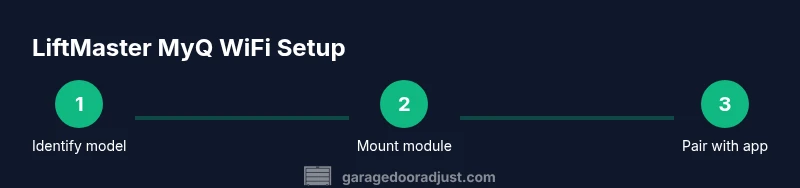
LiftMaster MyQ WiFi Setup and Troubleshooting Guide for Homeowners
Learn how to install, configure, and troubleshoot LiftMaster MyQ WiFi for reliable remote control, app pairing, and status updates. Step-by-step guide, safety tips, and common fixes for homeowners.


With LiftMaster MyQ WiFi, you gain remote garage door control, real-time status, and app-based operation. This quick guide shows how to verify compatibility, install or upgrade the WiFi module, connect to your home network, and pair the opener with the MyQ app. Expect step-by-step actions, safety checks, and common troubleshooting to keep your door responsive.
Understanding LiftMaster MyQ WiFi and Why It Matters
The LiftMaster MyQ WiFi integration enables remote control, live status updates, and scheduling for your garage door. For homeowners, this means you can open, close, and monitor your door from a smartphone, even when you’re away. LiftMaster MyQ WiFi is designed to work with compatible openers and requires a stable power source and a working internet connection. According to GarageDoorAdjust, starting with a clear model check and a solid power supply lays the foundation for reliable operation. This guide uses practical steps you can follow without specialized tools, while keeping safety front and center. Throughout, you’ll see references to liftmaster myq wifi as the core capability you’re enabling, with tips to avoid common setup pitfalls.
Compatibility and prerequisites for LiftMaster MyQ WiFi
Before you dive in, confirm that your opener model supports MyQ WiFi. Some older LiftMaster units require a separate WiFi module or an upgrade kit. Check the model number on the opener housing and compare it to the official MyQ compatibility list. Ensure you have a stable power source and a home Wi‑Fi network that your phone can join. GarageDoorAdjust analysis shows that proximity to the router and a strong signal help minimize drops during setup and daily use. Have your MyQ account ready, and keep the router’s password handy for quick configuration. This stage is all about planning so the subsequent steps go smoothly.
Installing or upgrading the MyQ WiFi module
If you’re upgrading, remove the existing module or connect the new MyQ module per the manufacturer instructions. The process usually involves mounting the module near the opener, securing power, and connecting a short Ethernet or USB bridge if your kit includes one. Follow the wiring diagram exactly and double-check that all connections are snug. The goal is a clean, secure installation that won’t jiggle loose with door movement. The GarageDoorAdjust Team recommends verifying the power is off before touching any internal components and testing only after reassembly to avoid shocks or shorts.
Connecting the opener to Wi‑Fi and pairing with the MyQ app
Power up the system and use your smartphone to connect to the MyQ app. The app will guide you through selecting your Wi‑Fi network and entering credentials. When you pair, the opener should emit a steady indicator and appear in the app as connected. If you encounter a connection drop, move closer to the router or temporarily disable VPNs that might block device discovery. This step finalizes the core integration, making remote features available.
Testing, safety features, and routine maintenance
After pairing, run a few tests: operate the door via the app, press the wall control button, and verify safety sensors activate correctly. Look for correct reversal when the door meets an obstacle and ensure the status light indicates active connectivity. Set up notifications in the MyQ app for door-open/close events and battery status if you have remotes. Regular maintenance, such as cleaning photo eyes and lubricating hinges, keeps the system responsive. The GarageDoorAdjust Team emphasizes pairing your account with a strong password and enabling notifications for quick alerts.
Troubleshooting common issues with LiftMaster MyQ WiFi
If the app won’t connect, verify your Wi‑Fi password and router settings, reboot the router, and re-run the pairing process. If the door won’t respond to the app, check the opener’s power and ensure firmware is up to date. A blinking indicator on the module can signal firmware or communication problems—follow the manual to initiate a reset or update. For persistent issues, check for interference sources (like heavy microwaves or metal barriers) and re-position the gateway if possible. The goal is to isolate whether the problem is network, hardware, or app related.
Best practices and next steps for ongoing reliability
Keep the MyQ app updated and review security settings periodically. Maintain clear labeling on the opener and keep the installation area free of debris or cables that could snag the door. Document your setup steps and model details so future maintenance is quicker. The GarageDoorAdjust Team recommends periodic checks of sensor alignment and door balance, especially after weather or structural changes that might shift components. With a solid setup, liftmaster myq wifi should deliver dependable, app-enabled operation that fits a typical homeowner’s routine.
Final note on ongoing reliability and user empowerment
With the right setup, LiftMaster MyQ WiFi becomes a powerful, convenient control point for your garage door. Stay proactive: schedule routine checks, monitor app activity, and refresh login credentials as needed. The goal is to keep your garage door secure, accessible, and easy to manage from anywhere. GarageDoorAdjust’s guidance favors practical, repeatable steps that help homeowners save time and avoid frustration over the long term.
Tools & Materials
- LiftMaster MyQ WiFi module or upgrade kit(Ensure compatibility with your specific LiftMaster opener model)
- Screwdriver set (Phillips and flathead)(Used for mounting hardware and cover plates)
- Ladder or step stool(Access near the garage ceiling safely)
- Smartphone with MyQ app installed(Must have internet access during setup)
- Wi-Fi network credentials(Network name and password handy)
- Safety glasses(Eye protection during hardware work)
- Cable ties and zip ties(Neaten wiring and secure cables)
Steps
Estimated time: 45-75 minutes
- 1
Identify model and compatibility
Locate the model number on the opener housing and verify MyQ compatibility using the official list. This step prevents wasted effort on an unsupported unit. Check for any required accessory kits for your specific model.
Tip: Note the exact model code; you’ll cross-check it against the MyQ compatibility page before proceeding. - 2
Power down and safety check
unplug the opener or switch off the circuit to avoid accidental movements while you install or upgrade the WiFi module. Confirm the door is balanced and stays stationary when lightly moved. This ensures safe handling of components.
Tip: Never work under a door that’s heavy or unsupported by manual locking mechanisms. - 3
Install or upgrade the MyQ module
Mount the MyQ module per the provided instructions, connect power, and ensure all wires are firmly seated. Replace any covers and check that the unit is secured against vibration. A stable mount reduces connection issues later.
Tip: If the install requires removing a cover, reassemble everything before testing power. - 4
Power up and test basic operation
Restore power and verify that the opener and module power on without unusual noises. Access the MyQ app to confirm the device appears, signaling initial connectivity. This confirms hardware readiness before app pairing.
Tip: Keep the power off while wiring until you’re ready to test the hardware connection. - 5
Connect to Wi‑Fi and pair with MyQ
Open the MyQ app, follow the prompts to connect to your home Wi‑Fi network, and sign in to your account. Pair the opener to the app and name it in the dashboard for easy identification. Ensure you’re on a stable network during this step.
Tip: If you encounter a network drop, temporarily disable VPNs or guest networks that could block device discovery. - 6
Test app control and safety features
Operate the door from the MyQ app and with the wall console to verify responsiveness. Check safety sensors for proper function and ensure a clear path for the door. Enable notifications for door status if desired.
Tip: Run a quick obstacle test by gently placing an object in the door’s path during testing. - 7
Document, secure, and maintain
Record the model, network details, and app configuration for future maintenance. Schedule periodic sensor checks and weather- or season-related inspections. This helps maintain reliability over time.
Tip: Set a recurring reminder to review app permissions and firmware updates.
Got Questions?
Which LiftMaster models support MyQ WiFi?
Most newer LiftMaster openers support MyQ WiFi with a compatible module or upgrade kit. Always verify your exact model against the official compatibility list before purchasing hardware.
Most newer LiftMaster models support MyQ WiFi with the right module. Check your model against the official list before buying.
How do I connect MyQ WiFi to my garage door opener?
Install the MyQ module, connect power, then use the MyQ app to pair the device with your opener and WiFi network. Follow in-app prompts step-by-step for a clean setup.
Install the MyQ module, power it up, and pair via the MyQ app following the on-screen prompts.
Why isn’t my MyQ app seeing the opener?
Check power to the opener and module, verify your Wi‑Fi credentials, and ensure the router isn’t blocking device discovery. Reboot the router and retry pairing if needed.
Make sure the device is powered, Wi‑Fi is correct, and try rebooting the router and re-pairing.
Can I operate the door manually if WiFi fails?
Yes. The door can be operated with the wall switch or remote control if the opener is not powered or the app is offline. Do not rely on the app as the sole control method.
Yes, you can still operate the door with the wall switch or remote if WiFi is down.
Is LiftMaster MyQ WiFi secure?
MyQ uses standard authentication and encryption for app access. Use strong, unique passwords and keep your firmware up to date to minimize vulnerabilities.
MyQ uses standard security practices; keep your password strong and firmware current.
Watch Video
Quick Summary
- Identify model compatibility before starting
- Prepare smartphone, Wi‑Fi, and safety checks
- Install the MyQ module correctly and pair with the app
- Test app control and safety features thoroughly
- Document setup and perform regular maintenance