Genie Garage Door Opener App Setup and Use
Learn how to set up and use the Genie garage door opener app for seamless remote control, status checks, and alerts. This step-by-step guide covers compatibility, pairing, notifications, and best practices to keep your home secure.


You can control a Genie garage door opener with the official Genie garage door opener app, including remote open/close, status checks, and notifications. To start, verify model compatibility, download the app, create an account, and pair the opener to your home Wi‑Fi. You’ll then be able to manage the door from anywhere, plus share access with trusted household members.
What the Genie Garage Door Opener App Delivers for Homeowners
The Genie garage door opener app provides a modern way to interact with your garage door from anywhere with an internet connection. Homeowners gain remote control, real-time status updates (open, closed, and pause states), and push notifications for events like a door left ajar or unexpected movement. The app also enables quick activity logs, which can help you verify entries and exits when you’re away. For many households, this app becomes the central hub for garage access, especially when multiple people need occasional entry. The GarageDoorAdjust team has observed that users value reliability, timely alerts, and an intuitive pairing flow that doesn’t require a specialized setup.
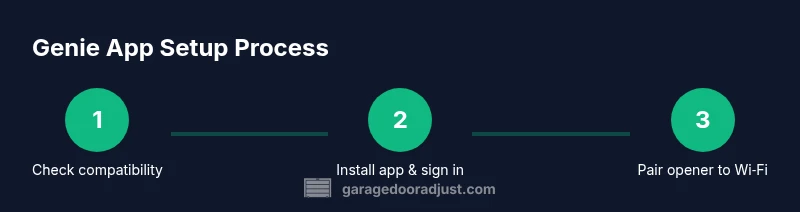
To get started, confirm your opener model supports the Genie app, download the app from the App Store or Google Play, create an account, and follow the guided pairing steps. You’ll then see a dashboard showing door status and controls, plus the option to name the door and assign it to a room for easier voice assistant or automation integration. It’s also worth noting that while the Genie app can enhance convenience, you should follow best practices for online security, such as using a strong password and enabling available security features.
Compatibility, prerequisites, and safety basics
Compatibility is the first gatekeeper for using the Genie app effectively. Not every Genie opener supports mobile control, so you’ll need to verify your model’s compatibility before attempting setup. Look for indications in your opener’s user manual or on Genie’s official site that reference “Genie Aladdin Connect” or similar app-enabled features. If you own a model produced before the Wi‑Fi adapters became common, you may need a bridge or a newer unit to enable remote features. In addition to compatibility, ensure your home Wi‑Fi network is functioning well and uses a 2.4 GHz band for pairing. A weak or unstable connection can cause pairing failures or intermittent control access. For safety, keep the door area clear during setup, and never attempt pairing while the door is in motion. The GarageDoorAdjust analysis emphasizes secure, stable connections as a foundation for reliable app-driven control.
Before you start, gather the necessary items: a smartphone (iOS or Android), a Genie opener with built-in Wi‑Fi or a compatible bridge, the Genie app, and a stable 2.4 GHz Wi‑Fi network. If you have multiple users, decide who will have access and whether you’ll enable guest or shared access. Finally, review the opener’s safety features—such as auto-reverse—and confirm they function as you expect from the app interface. If you’re unsure about compatibility, contact Genie support or consult the manual to confirm model numbers and firmware requirements.
Step-by-step pairing and setup flow
The setup flow is designed to be straightforward, with clear prompts in the Genie app guiding you from download to first remote control. Start by installing the app and creating a Genie account, then proceed to add a device. The app will ask you to confirm the opener’s model, locate the pairing button or terminal on the unit, and connect it to your home Wi‑Fi. Expect the process to take about 20–30 minutes, depending on model and network stability. If you encounter a hiccup, restarting the router or moving the phone closer to the opener can help.
During pairing, name the device in the app (for example, “Garage – Driveway Door”) and assign it to a room if the app supports this. After a successful connection, test the basic actions: open, close, and stop. Check the status updates in real time and confirm that notifications appear on your phone when the door changes state. Finally, review the app’s settings to customize alert timing, geofence options, and user permissions. Following these steps helps ensure a dependable remote experience that aligns with everyday routines.
Using notifications, sharing access, and automations
With the Genie app paired, you can tailor notifications to your preferences. Typical options include alerts when the door opens or closes, when it’s left open beyond a set duration, or when motion is detected nearby. Decide which events are worth sending to your phone and consider batching notifications to avoid fatigue. The app’s sharing feature lets you grant access to family members or trusted guests. You can set permissions (view only vs. control) and remove access when no longer needed. For households with multiple entry points or auto-automation routines, you can pair the Genie app with other smart devices or voice assistants to streamline daily activities. A prudent approach is to start with a single user and a small set of alerts, then expand as you become more comfortable with the system.
Security best practices apply here as well: use a strong, unique password for your Genie account, enable two-factor authentication if offered, and periodically review account activity for unfamiliar sign-ins. The garage door itself remains a safety-critical device, so keep maintenance in mind—sensor alignment, door balance, and spring conditions influence how reliably you can rely on automated control. The GarageDoorAdjust team notes that ongoing attention to security and maintenance helps ensure peace of mind as you rely more on the Genie app for daily access.
Troubleshooting and common pitfalls
Even a well-planned setup can run into snags. If the app can’t find the opener, recheck model compatibility, ensure the opener is powered, and verify that the phone and router are on the same 2.4 GHz network. If you experience intermittent connectivity, consider rebooting the router and the phone, turning off vacation modes on the app, and temporarily disabling VPNs that might block local network discovery. For pairing failures, ensure the pairing button or method on the opener is engaged as described in the manual, and retry while the door is stationed in a fully closed position. If you still can’t connect, consult the official Genie support resources or consider a firmware update for the opener if available. Finally, if notifications aren’t arriving, verify that the app has the necessary permissions on your device (notifications enabled) and that your account is active.
The key is to methodically isolate each potential cause: network, device, and account settings. By changing one variable at a time, you can identify the roadblock faster and restore remote control quickly. If persistent issues occur, involve a professional technician to avoid compromising safety. Regular checks of door balance and force settings also help prevent false positives or missed actions when using the app.
Privacy, security, and maintenance best practices
Privacy and security should guide every Genie app setup. Treat device access like physical access: grant only necessary permissions, review who can operate the door, and remove access for people who no longer need it. Regularly update the Genie app to the latest version to benefit from security patches and feature improvements. Enable any built-in privacy protections, such as two-factor authentication and biometric login where available. For ongoing maintenance, schedule periodic checks of the door’s spring balance, tracks, and safety sensors to ensure smooth operation. Clean the sensor lenses with a soft cloth to avoid false detections and test auto-reverse at a safe time. While automation can improve convenience, always keep a manual override handy and never rely solely on the app for door safety.
Authority sources and further reading
For safety and regulatory guidance related to garage doors and openers, refer to authoritative sources:
- U.S. Consumer Product Safety Commission (CPSC): https://www.cpsc.gov
- Occupational Safety and Health Administration (OSHA): https://www.osha.gov
- Federal Trade Commission (FTC): https://www.ftc.gov
These resources offer general safety guidelines, privacy considerations, and consumer protections that complement hands-on setup with the Genie app. GarageDoorAdjust recommends reviewing these sources to stay informed about best practices and safety standards while using app-based controls.
Tools & Materials
- Smartphone (iOS or Android)(Ensure internet access and access to the App Store/Google Play)
- Genie garage door opener with Wi-Fi or compatible bridge(Check compatibility list in the manual or Genie site)
- Genie app(Download from App Store or Google Play)
- 2.4 GHz Wi‑Fi network(Essential for pairing and remote control)
- Power source to the opener(Ensure the opener remains powered during setup)
- Owner's manual or model number(Helpful for locating pairing steps and compatibility)
Steps
Estimated time: 25-40 minutes
- 1
Verify compatibility and prepare devices
Check that your Genie opener supports app-based control and that you have access to a 2.4 GHz network. Confirm you have a smartphone, the opener powered, and the manual handy. This step prevents wasted effort if the hardware isn’t compatible.
Tip: Have the model number written down in case you need support. - 2
Install and sign in to the Genie app
Download the Genie app from the App Store or Google Play, then create or sign in to your Genie account. Follow on-screen prompts to accept permissions and locate the add-device option.
Tip: Use a strong password and enable two-factor authentication if offered. - 3
Put the opener into pairing mode
In the app, choose Add Device and select Genie garage door opener. Follow prompts to trigger pairing on the opener (often a button or a specific sequence in the manual).
Tip: If you don’t see the pairing light, verify the model instructions in the manual. - 4
Connect to Wi-Fi within the app
The app will guide you to connect the opener to your home Wi‑Fi. Ensure you remain within range during setup and that the network is stable.
Tip: Prefer a strong 2.4 GHz signal; 5 GHz networks can cause connectivity issues with some devices. - 5
Name the device and assign a location
Give the opener a clear name (for example, Gym Garage Door) and assign it to a room if the app supports it. This helps when you use voice assistants or automation rules.
Tip: Document the chosen name for future reference and troubleshooting. - 6
Test the setup and adjust notifications
Use the app to open and close the door, then verify status updates appear on your phone. Configure notifications for events like open, close, or door left open.
Tip: Test with a family member or friend to validate access sharing.
Got Questions?
Is the Genie garage door opener app compatible with all Genie openers?
Compatibility depends on the model. Check your opener’s model number against Genie’s compatibility list and the manual. If in doubt, contact Genie support for confirmation before attempting setup.
Compatibility varies by model. Check the manual or contact Genie support to confirm before starting.
Do I need a subscription to use the Genie app?
Most basic remote control and notifications do not require a subscription. Some advanced features may be available through app updates or specific plans; review the app’s terms for details.
Most basic features don’t require a subscription; read the terms in the app for specifics.
Can I grant remote access to family members via the Genie app?
Yes. The app lets you invite trusted users and set permissions. You can remove access anytime and audit activity from the device’s event log.
You can invite others with defined permissions and remove access when needed.
What should I do if the app can’t find my opener?
Double-check compatibility, ensure the opener is powered, and verify your phone and opener are on the same network. Restarting the router and retrying pairing often resolves the issue.
Make sure you’re on the same network and try pairing again after a router reboot.
Are geofence features safe for garage door automation?
Geofence features can add convenience but should be configured carefully to avoid unwanted openings. Test geofence behavior in a controlled setting and keep safety sensors calibrated.
Geofence can be convenient but test it carefully and keep sensors calibrated.
How do I update firmware on the Genie opener?
Firmware updates are typically delivered through the app when available. Ensure the opener has power during updates and follow on-screen prompts to install.
Firmware updates usually come through the app; keep power and follow prompts to install.
Watch Video
Quick Summary
- Verify compatibility before starting setup.
- Install the Genie app and create a secure account.
- Pair the opener to Wi-Fi for remote access.
- Name devices and manage access for shared users.
- Test controls and notifications to confirm reliability.