Can Android Auto Open My Garage Door? A Practical Guide
Explore whether Android Auto can open your garage door, how to set it up safely, and practical alternatives. A GarageDoorAdjust guide to help homeowners navigate smart opener integrations.


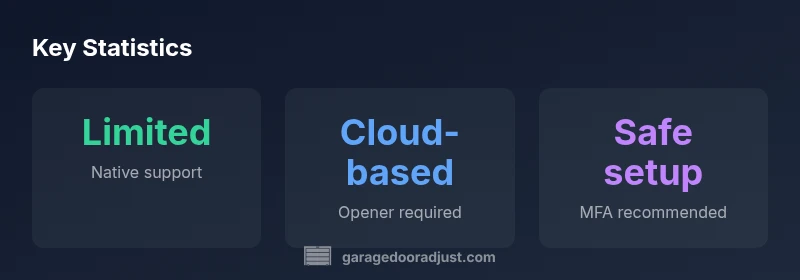
Android Auto does not directly open a garage door. There is no native garage-control feature in the Android Auto interface. Instead, you control a connected smart opener through its app or a Google Assistant routine, and Android Auto can relay that command when the opener is linked to your account. In practice, a compatible hub or app bridge is essential for door operation via Android devices.
Can Android Auto Open a Garage Door?
The short answer is: not directly. Android Auto does not expose garage door controls as a native feature. Instead, you use a compatible smart opener and its app, which can be triggered through Google Assistant or through Android Auto's voice and automation capabilities when paired with a supported smart home ecosystem. According to GarageDoorAdjust, the practical path is to connect your opener to a cloud-based app (like a MyQ-enabled hub) and then control it via Google Assistant, which Android Auto can relay. This separation is intentional for safety and privacy reasons, ensuring that vehicle-internal controls don't directly command a garage door without a deliberate setup.
How the integration works: bridging apps and assistants
Garage door control via Android Auto happens through a bridge: your opener talks to its cloud service, your phone sends a Google Assistant command, and the assistant translates that into a door action. Android Auto itself doesn’t issue the signal directly; it relays the request to Google Assistant, which then communicates with the smart opener’s app or hub. Security boundaries are important here because you’re passing a mechanical action through multiple software layers. Use trusted apps from reputable manufacturers and ensure your phone and car have current software for the bridge to function reliably.
Hardware and app requirements
To enable this, you’ll need three things: a cloud-connected garage door opener (for example, a model with a companion app or hub), the opener’s mobile app, and Google Assistant configured on your phone. A stable internet connection is essential, as commands route through the cloud. Optionally, enable two-factor authentication on the opener account and review shared access for family members. Finally, ensure Android Auto is enabled and your car’s infotainment system supports quick access to the connected apps.
Step-by-step setup guide
- Confirm compatibility: Verify your garage opener supports cloud-based control and is compatible with Google Assistant.
- Install or update the opener app: Download the official app and ensure it links to your opener hardware.
- Link to Google Assistant: In the app, enable Assistant integration and sign in with your Google account.
- Create a routine or shortcut: Use Google Assistant to create a voice or button-triggered routine that performs the door action.
- Configure Android Auto: Ensure Android Auto is running the latest version and that the opener app is available on the car display.
- Test safely: Park in a safe location, use a physical button or voice command, and verify the door responds as expected.
- Set access controls: Enable MFA, assign phone-specific permissions, and review who can trigger the door remotely.
Security considerations and best practices
A garage door is a hardware action linked to your home access. Treat it like any other smart-home capability: enable strong authentication, monitor activity logs, and limit who can trigger openings. Use MFA on the opener account, avoid giving guest accounts broad control, and consider geofence-based automation that restricts remote triggers when you’re not home. Regularly update the apps and firmware to seal new vulnerabilities, and disable automatic door opening if a device is lost or stolen.
Alternatives and safer options
If you’re uncomfortable with app-based control, consider safer alternatives such as dedicated remotes, keypad entry, or a security-focused smart hub that requires two stages of verification before opening. Some homeowners opt for voice-assisted routines that require a stationary phone, or require you to unlock your phone before a command is accepted. Always balance convenience with the risk of unwanted access.
Troubleshooting and testing tips
If Android Auto isn’t triggering the door, start by verifying the opener’s cloud service is online and the app shows the door status correctly. Check that Google Assistant is linked to the correct account and that the routine uses the correct trigger phrase. Review app permissions and ensure the car’s display has permission to run background tasks. Finally, run a real-world test with caution and keep a manual override on hand.
Overview of Android Auto garage door control compatibility
| Aspect | Meaning | Setup steps |
|---|---|---|
| Native support | Android Auto does not include built-in garage door control | Install compatible opener app and link to Google Assistant |
| Third-party control | Requires a bridge/app to trigger opener | Set up MyQ or other compatible app, link to Google Assistant |
| Security practices | Maintain access controls to prevent unwanted operation | Enable MFA, create per-user credentials, review app permissions |
| Testing safety | Test in a controlled environment before relying on it | Use stationary vehicle, verify with a close friend or test dummy |
Got Questions?
Can Android Auto open my garage door without additional hardware?
No. Android Auto lacks native garage door controls. You need a compatible smart opener plus its app or Google Assistant integration to trigger the door.
No. Android Auto can't open a garage door by itself; you need a compatible smart opener and its app or Google Assistant to trigger it.
What equipment do I need to set this up?
A cloud-connected opener (MyQ-enabled or equivalent), the opener’s app, and Google Assistant configured on your phone. Ensure a stable internet connection.
You’ll need a cloud-connected opener, its app, and Google Assistant set up on your phone.
Is this setup secure?
Yes, with proper controls. Enable MFA, limit permissions, and review access regularly. Use strong passwords and keep apps up to date.
Yes, if you enable security features like MFA and manage access carefully.
Can I use Android Auto while driving to open the door?
No. For safety, avoid triggering the door while driving. Use stationary voice commands or a physical button reminder.
Don’t operate the garage door while driving; use a stationary moment to trigger it.
What if my opener isn’t compatible?
You may need a bridging hub or upgrade to a supported model that offers cloud control and Google Assistant integration.
If your opener isn’t compatible, you may need a smart hub or upgrade.
“Android Auto should not be used as a primary control for a garage door; rely on vetted smart-openers and official app integrations for safe operation.”
Quick Summary
- Verify compatibility before setup
- Use reputable apps and hubs
- Enable MFA and per-user permissions
- Test in a safe, stationary location
- Consider safer alternatives for guests